How to Reduce Interference with Sub-Band Wi-Fi
You feel the frustration of slow Wi-Fi. Your Wi-Fi connection drops during important tasks. This poor Wi-Fi performance crea

You feel the frustration of slow Wi-Fi. Your Wi-Fi connection drops during important tasks. This poor Wi-Fi performance creates constant interference. You can improve your Wi-Fi experience. Take control of your network with sub band Wi-Fi. These act like private express lanes for your internet traffic, reducing interference from neighbors. This boosts your download speeds and overall performance.
Goal: Achieve better performance for your Wi-Fi. This means smoother high-definition video streaming and lag-free online gaming. We will guide you to increase your Wi-Fi speed.
Key Takeaways
- Use a Wi-Fi analyzer app to find clear channels. This helps you see which Wi-Fi channels your neighbors use.
- Log into your router settings. Manually pick a less crowded channel for your 5 GHz or 6 GHz Wi-Fi band.
- Separate your Wi-Fi network names. This lets you connect devices to the fastest Wi-Fi band.
- Consider upgrading to Wi-Fi 6E or Wi-Fi 7. These newer technologies offer faster speeds and less interference.
Understanding Sub Band Wifi and Interference

You can think of your Wi-Fi network like a highway system. Some lanes are wide open while others are stuck in traffic. This traffic is interference. It slows down your connection and hurts your network's performance. Many devices in your home create this interference. Your neighbor's Wi-Fi, microwave ovens, and even some cordless phones can clog your network. This congestion causes lag in games and buffering during video calls. To get the best performance, you need to understand how this highway system works. A tri-band router offers more lanes, which helps manage traffic for better throughput.
Your Wi-Fi Bands: 2.4, 5, and 6 GHz Explained
Your router broadcasts signals on different frequency bands. Each band has unique strengths.
- 2.4 GHz: This band covers a large area and passes through walls easily. However, it offers slower speeds and faces heavy interference from many household devices. Its maximum throughput is lower.
- 5 GHz: This band provides much faster Wi-Fi speeds and has less interference. Its main weakness is a shorter range. The signal struggles to travel through solid objects. A dual-band router uses both 2.4 GHz and this 5ghz frequency band.
- 6 GHz: This is the newest and fastest band, available with Wi-Fi 6E. It offers incredible speed and very low interference because only Wi-Fi 6E devices can use it. However, its range is the shortest and it cannot penetrate walls well. A tri-band router with Wi-Fi 6E gives you access to all three bands for maximum performance.
What Are Sub-Bands? Your Private Network Lanes
The term sub band Wi-Fi in this guide refers to smaller sets of channels within the larger 5 GHz and 6 GHz bands. Think of them as exclusive express lanes on the Wi-Fi highway. The 5 GHz band, for example, is divided into sections called Unlicensed National Information Infrastructure (UNII) bands.
| UNII Band | Frequency Range (GHz) |
|---|---|
| UNII-1 | 5.150 – 5.250 |
| UNII-2A | 5.250 – 5.350 |
| UNII-2C | 5.330 – 5.730 |
| UNII-3 | 5.735 – 5.835 |
Note: Do not confuse sub band Wi-Fi with "Sub-GHz" bands. Sub-GHz signals are for long-range, low-power devices like smart sensors. They offer very low throughput and are not used for high-speed home Wi-Fi.
Finding a Clear Wifi Channel with an Analyzer App
You must find the least crowded channel to reduce interference. A Wi-Fi analyzer app on your phone or computer helps you do this. These apps scan your environment. They show you which Wi-Fi channels your neighbors are using. For Android, apps like WiFi Analyzer give you a quick scan. For more detail on Windows or macOS, NetSpot is a powerful option. These tools help you visually identify an open lane for your Wi-Fi signal, which is key to improving throughput and overall network performance. A tri-band router with Wi-Fi 6E provides many more channels, making it easier to find a clear one.
How to Configure Your Router for Less Congestion

You have analyzed your network and found the crowded channels. Now you can take action. You will enter your router's control panel to manually select a clearer path for your signal. This process gives you direct control over your network's performance and is the most effective way to fight Wi-Fi interference.
Accessing Your Router’s Advanced Settings
You can access your router’s settings through a web browser on a connected device. This requires you to know the router's IP address, which acts like its home address on your network.
- Open a web browser like Chrome, Firefox, or Safari.
- Type your router's IP address into the address bar and press Enter. Most routers use a common default address.
You can find your router's default IP address in the table below.
| Router Brand | Default IP Address |
|---|---|
| Linksys | 192.168.1.1 |
| NETGEAR | 192.168.0.1, 192.168.1.1, 10.0.0.1 |
| TP-Link | 192.168.0.1, 192.168.1.1, 192.168.68.1 |
Tip: If these addresses do not work, you can find the correct IP on a sticker on the bottom of your router. It is often labeled as the "Default Gateway."
After entering the IP address, your browser will show a login page. You will need the administrator username and password. These are also often printed on the router itself. If you have never changed them, you can try the common defaults.
| Router Brand | Username | Password |
|---|---|---|
| D-Link | admin | admin |
| Linksys | admin | admin |
| Netgear | admin | password |
| TP-Link | admin | admin |
| Belkin | admin | admin |
Once logged in, look for a menu option labeled "Wireless," "Advanced," or "Wi-Fi Settings." This is where you will find the controls for your Wi-Fi channels.
Manually Setting Your Wi-Fi Channel
Your router is likely set to "Auto" channel selection. This feature can be unreliable in crowded areas. You should switch it to "Manual" to gain full control.
For your 2.4 GHz Wi-Fi network, you have limited options. You should only use one of three specific channels to avoid interference.
- Channel 1
- Channel 6
- Channel 11
These three channels do not overlap, which gives your signal the clearest possible space on this crowded band.
For your 5 GHz Wi-Fi network, you have many more choices. Use the analyzer app from the previous step to find an open channel. The UNII-3 sub band Wi-Fi channels (149-165) are often a good place to start. For example, some users find channel 161 gives them the best speed and performance. However, some internet providers default to these channels, so you may find the UNII-1 band (channels 36-48) is clearer in your area. Your analyzer app is your best guide. For a Wi-Fi 6 router, channels 149-161 are ideal for high-performance setups.
Next, you will see a setting for Channel Width. This controls how wide your Wi-Fi lane is. A wider lane offers faster speeds, but it also picks up more interference.
| Channel Width | Speed Impact | Stability in Crowded Environments |
|---|---|---|
| 20 MHz | Lower Speeds | Better Stability |
| 40 MHz | Increased Speeds | Good Balance |
| 80 MHz | High Throughput | Prone to Instability |
| 160 MHz | Maximum Speeds | Very Prone to Instability |
Recommendation: For the 5 GHz band, start with an 80 MHz width for a good balance of speed and stability. If your connection is unstable, reduce it to 40 MHz.
The Wifi 6 and 6E Advantage on the 6 GHz Band
Modern routers using the Wi-Fi 6 standard already improve performance on the 2.4 GHz and 5 GHz bands. Wi-Fi 6 is more efficient at handling many devices at once. This reduces lag even on congested channels. The true revolution, however, comes with Wi-Fi 6E.
Wi-Fi 6E introduces the 6 GHz band. This band is a brand-new, exclusive highway for your Wi-Fi traffic. It is completely separate from the older, crowded bands. This new spectrum is so large that it provides up to seven non-overlapping 160 MHz channels in the US. This is a massive upgrade over the 5 GHz band, which has only two.
The primary benefit of Wi-Fi 6E is the dramatic reduction in interference. The 6 GHz band is a clean slate, free from older Wi-Fi devices and other sources of electronic noise. This makes Wi-Fi 6E perfect for demanding tasks like 4K streaming and competitive gaming. A Wi-Fi 6 router offers a good upgrade, but a Wi-Fi 6E router provides the best possible wireless experience. The performance of Wi-Fi 6 is strong, but the performance of Wi-Fi 6E is unmatched in busy homes.
The differences between a Wi-Fi 6 and a Wi-Fi 6E network are significant, especially regarding interference.
| Feature | Wi-Fi 6 (on 5 GHz) | Wi-Fi 6E (on 6 GHz) |
|---|---|---|
| Interference Level | Moderate, due to shared use with older Wi-Fi. | Extremely low, as it is exclusive to Wi-Fi 6E devices. |
| Channel Availability | Limited, with some channels requiring scans for radar. | Abundant, with no radar interference concerns. |
| Throughput | Good, but can drop in congested areas. | More consistent high throughput, free from legacy congestion. |
| Latency | Low, but can spike with heavy Wi-Fi traffic. | Ultra-low and stable, ideal for real-time applications. |
In real-world tests, Wi-Fi 6E can be over 50% faster than Wi-Fi 6 in the same environment simply because its signal is so clean. If you want the ultimate Wi-Fi performance, upgrading to a Wi-Fi 6E system is the most powerful step you can take.
Advanced Strategies for Optimizing Your Wi-Fi Network
You have configured your channels. Now you can use advanced strategies for even better Wi-Fi performance. These methods give you more precise control over your network. They also prepare you for the future of wireless technology.
Using Separate Network Names (SSIDs)
Your router might combine the 2.4 GHz, 5 GHz, and 6 GHz bands under one Wi-Fi network name. You can gain more control by giving each band its own name (SSID), like MyHome_2.4G and MyHome_5G. This separation is the first step to manually assigning devices to the best band.
- You gain greater control. You can force your new laptop to connect to the faster 5 GHz band instead of it defaulting to the slower 2.4 GHz wi-fi.
- You can isolate problems. If one wi-fi band has issues, it is easier to troubleshoot when the networks are separate.
- You can create dedicated networks. You might assign one 5 GHz band just for high-performance devices to maximize throughput for online gaming or streaming.
Using Dynamic Frequency Selection (DFS) Channels
The 5 GHz band contains special channels called Dynamic Frequency Selection (DFS) channels. These channels were originally reserved for radar systems, including weather and military radar. Using them can open up more lanes for your wi-fi signal, but there is a catch. Your router must constantly check for radar activity.
Caution: If your router detects a radar signal on a DFS channel, it is legally required to move your Wi-Fi connection to a different channel immediately. This can cause a brief but noticeable service interruption, which might disrupt a video call or online gaming session.
While DFS channels increase your options, they can sometimes lead to instability if you live near an airport or weather station.
Future-Proofing with Wi-Fi 7 and Multi-Link Operation
The next generation of wireless is Wi-Fi 7. This new standard dramatically improves throughput and reliability. The key feature of Wi-Fi 7 is Multi-Link Operation (MLO). MLO allows a single device to connect to your router using multiple bands (like 2.4 GHz and 5 GHz) at the same time. This technology increases your download speeds and creates a more resilient connection. Companies like Nova Technology Company (HK) Limited, a HiSilicon-designated solutions partner, are involved in developing these advanced Wi-Fi 7 solutions.
Wi-Fi 7 offers a huge leap in performance over previous standards. It introduces wider 320 MHz bandwidth and much higher throughput.
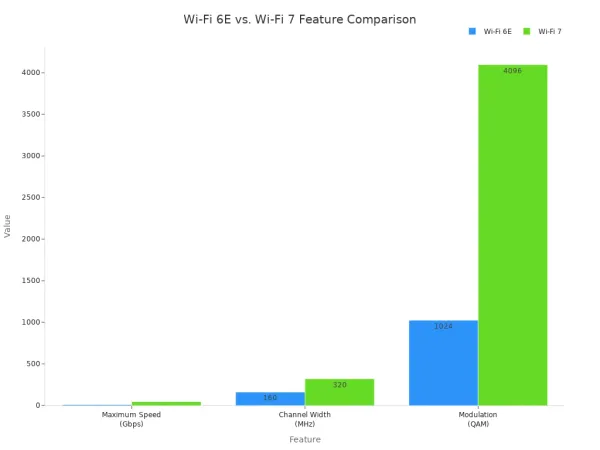
While Wi-Fi 7 certified devices are just beginning to arrive in 2024, upgrading to a Wi-Fi 7 router is the ultimate way to future-proof your home network for unmatched speed and stability. The performance of Wi-Fi 7 will redefine what is possible for a home Wi-Fi network.
You can achieve a better Wi-Fi experience. Taking control of your sub band Wi-Fi settings directly reduces interference from neighbors. This improves your Wi-Fi speed and creates a more reliable Wi-Fi connection. These technical tweaks give you a faster and more stable Wi-Fi experience.
Your Action Checklist
- Analyze: Use a Wi-Fi analyzer app to find crowded channels.
- Configure: Log into your router and find the advanced Wi-Fi settings.
- Set Channel: Manually select a clear channel on your 5 GHz or 6 GHz Wi-Fi band.
- Assign Devices: Connect your devices to the best Wi-Fi band to manage interference.
FAQ
What is the best wi-fi channel for my wi-fi?
You should use a wi-fi analyzer app to find the best wi-fi channel. Your wi-fi will perform better on a less crowded channel. For your 2.4 GHz wi-fi, use channel 1, 6, or 11. For your 5 GHz wi-fi, a clear channel in the UNII-3 sub-band often improves your wi-fi.
Will separating my wi-fi network names improve my wi-fi?
Yes, separating your wi-fi names gives you more control over your wi-fi. You can assign devices to the best wi-fi band. This ensures your high-performance devices use the fastest wi-fi available. Your overall wi-fi experience will improve. This is a good wi-fi management practice.
Is Wi-Fi 6 the same as Wi-Fi 6E for my wi-fi?
No, they are different wi-fi standards. A Wi-Fi 6 router improves your existing 2.4 GHz and 5 GHz wi-fi. A Wi-Fi 6E router adds the exclusive 6 GHz band. This new band offers the best wi-fi performance with the least interference for your wi-fi devices. Wifi 6 is a good wi-fi upgrade.
Should I upgrade my wi-fi to Wi-Fi 7 now?
Upgrading your wi-fi to Wi-Fi 7 is a great choice for future-proofing. Wi-Fi 7 offers the fastest wi-fi speeds. Wi-Fi 7 uses Multi-Link Operation for a stronger wi-fi connection. While Wi-Fi 7 is new, a Wi-Fi 7 router provides the ultimate wi-fi performance for your home wi-fi.
How does Wi-Fi 7 improve my wi-fi over Wi-Fi 6?
Wi-Fi 7 is a major leap for your wi-fi. Wi-Fi 7 offers much higher throughput than Wi-Fi 6 wi-fi. Wi-Fi 7 also reduces latency for your wi-fi. This makes your wi-fi better for gaming and streaming. The technology in Wi-Fi 7 creates a superior wi-fi network.