Top 7 Flipper Zero Uses for Tech Enthusiasts in 2025
Explore the world of digital interaction with your Flipper Zero. You can master many powerful functions with this
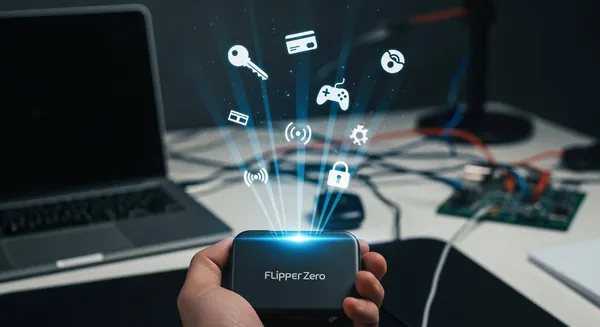
Explore the world of digital interaction with your Flipper Zero. You can master many powerful functions with this single device.
- Universal IR Remote Control
- Access Control System Analysis
- Sub-GHz Wireless Exploration
- Advanced Hardware Hacking
- BadUSB Automation Scripts
- U2F Security Key Functionality
- iButton System Interaction
The Flipper Zero is your ultimate multi-tool for 2025. It helps you understand the electronics all around you. The market for this device is maturing. An upward trend in sales for accessories and cases shows that users are investing more in their devices. These flipper zero uses turn complex technology into an accessible hobby.
Key Takeaways
- The Flipper Zero is a small device. It can act as a universal remote for many electronics.
- It helps you understand access cards. You can read and save information from RFID and NFC tags.
- The Flipper Zero can explore wireless signals. It helps you learn how devices like garage door openers work.
- You can connect the Flipper Zero to other electronics. This helps you fix and test hardware.
- The Flipper Zero can act like a keyboard. It can type commands into a computer automatically.
1. Universal IR Remote Control
One of the most immediately useful functions of your Flipper Zero is its ability to act as a universal infrared (IR) remote. You can transform your device into a single controller for the many electronics in your home.
IR Signal Cloning
Your Flipper Zero can learn and replicate signals from almost any IR remote. The process is simple. You just point the original remote at your Flipper and press the buttons you want to copy. The device captures and saves the signal. For many common devices, you may not even need the original remote. The Flipper Zero contains a built-in dictionary of IR protocols that major electronics brands use. This allows it to send commands to various devices like TVs and air conditioners right out of the box. If a specific remote protocol is not in the dictionary, you can always read the commands from the original remote or find community-made files online.
Consolidating Remotes
Imagine replacing an entire drawer full of remotes with your single Flipper Zero. This is one of the most practical flipper zero uses for decluttering your living space. You can consolidate controls for multiple devices into one convenient interface.
- Televisions: Change channels, adjust volume, and access menus.
- Air Conditioners: Set the temperature and fan speed.
- Stereo Systems: Control playback, volume, and input sources.
- Projectors: Power on the device and navigate settings.
This feature turns your Flipper into the ultimate universal remote, simplifying control over your home entertainment and comfort systems.
Signal Limitations
While powerful, the IR function has limitations inherent to the technology itself. You must understand how it works for reliable use.
Note: Infrared signals require a direct line of sight to function. The signal cannot pass through walls or solid objects. You need to point your Flipper Zero directly at the device's IR receiver, just like you would with a standard remote.
This physical requirement is the main constraint, but for in-room control, the Flipper Zero is an exceptionally capable tool.
2. Access Control System Analysis
Your Flipper Zero opens up the invisible world of radio-frequency identification (RFID) and near-field communication (NFC). You can use it to read, save, and emulate various types of access cards and tags, giving you a deeper understanding of the systems you interact with daily.
Reading RFID and NFC
The device comes equipped with antennas to interact with both low-frequency (125kHz) and high-frequency (13.56MHz) tags. This allows you to read a wide array of protocols. For high-frequency NFC, it supports standards like:
- MIFARE Classic 1K
- MIFARE Classic 4K
- MIFARE Classic Mini
It also has an extensive library for common low-frequency 125kHz cards, including HID Prox, EM4100, and Indala.
Beyond access cards, you can explore fun applications like interacting with video game collectibles. For example, you can read and back up your Nintendo Amiibos. If a normal read fails, you can try a special workaround:
In the NFC menu, navigate to
Extra Actions>Unlock NTAG/Ultralight>Auth as Ameeboand then scan your figure. This often allows you to successfully save the Amiibo data to your Flipper.
Emulating Access Cards
Once you save a compatible card's data, your Flipper Zero can emulate it. This means the Flipper can pretend to be that card. This is one of the most powerful flipper zero uses for convenience. You can create a digital backup of your personal gym pass or office key card, allowing you to leave the physical cards at home. This feature is also excellent for pentesters who need to analyze and test the security of an access control system.
Ethical Use Warning: ⚠️ Only read and emulate cards that you own or have explicit permission to test. Using this feature on unauthorized systems is illegal and unethical. Always act responsibly.
High-Frequency Protocol Limits
Your Flipper Zero is a powerful tool, but it has its limits. Modern, highly secure protocols use advanced encryption and security measures that the Flipper cannot bypass. For instance, many corporate and banking systems use cards like MIFARE DESFire. While the Flipper might read some basic information from these cards, it cannot save or emulate them.
The table below shows the Flipper's current limitations with some high-frequency card types:
| Card Type | Read | Write | Save | Emulate |
|---|---|---|---|---|
| Mifare DESFire | ✅ | ❌ | ❌ | ❌ |
| NFC-B | ❌ | ❌ | ❌ | ❌ |
| Paxton Net2 | ❌ | ❌ | ❌ | ❌ |
| Legic Prime | ❌ | ❌ | ❌ | ❌ |
These limitations exist because protocols like DESFire are complex and have no known public exploits.
3. Sub-GHz Wireless Exploration
Your Flipper Zero has a powerful Sub-GHz antenna. This feature lets you interact with the wireless signals that control many common devices. You can capture, analyze, and replay these signals to understand how they work.
Capturing Radio Signals
You can use your Flipper to listen to a wide range of radio frequencies. The specific frequencies for consumer devices vary by region. Your Flipper is configured to listen on the correct bands for your area.
- North America: Devices often use the 915 MHz band.
- Europe: Devices typically use the 433 MHz and 868 MHz bands.
You can capture signals from many everyday items. For example, you can analyze transmissions from wireless weather stations, food order pickup buzzers, and some security system sensors. This allows you to see the invisible data flying through the air around you.
Testing Wireless Devices
You can also use the Sub-GHz function to test your own wireless projects. The Flipper Zero helps you debug custom electronics and validate their performance. You can connect external hardware to the Flipper’s GPIO pins to expand its capabilities. For instance, you can attach a WiFi devboard for packet sniffing or use a dedicated NRF24L01+ module to test custom radio prototypes.
Pro Tip: Be aware that signal strength (RSSI) naturally changes when you move. This can cause false readings if you are testing a device while walking around. For best results, test from a stationary position.
Understanding Rolling Codes
When you explore Sub-GHz signals, you will encounter two main types of security: fixed codes and rolling codes. Older systems, like simple garage door openers, often use a fixed code. This code never changes, making it easy to capture and replay.
Modern systems use rolling codes for enhanced security. A rolling code system generates a new, unique code with every use. Your Flipper can capture a code, but the receiver will not accept it again. This technology prevents replay attacks. The table below highlights the key differences.
| Feature | Fixed Code System | Rolling Code System |
|---|---|---|
| Code Transmission | Transmits a single, unchanging code. | Transmits a unique, changing code each time. |
| Security Level | Less secure; vulnerable to replay attacks. | Enhanced security; resistant to replay attacks. |
| Vulnerability | An attacker can easily record and reuse the code. | A captured code is useless for future access. |
| Complexity | Simple and inexpensive. | More complex, uses advanced algorithms. |
This makes your Flipper an excellent tool for identifying the security level of wireless devices you encounter.
4. Advanced Flipper Zero Uses: Hardware Hacking
You can unlock your Flipper Zero's full potential by exploring its hardware hacking capabilities. The device’s General Purpose Input/Output (GPIO) pins let you connect directly to other electronic components. This opens up a world of advanced projects and diagnostics.
GPIO Interface Basics
Your Flipper Zero features an 18-pin header for connecting to external hardware. These pins allow you to send and receive digital signals, power external modules, and communicate with other devices. All I/O pins are 3.3V tolerant and have ESD protection for safety. You can even enable a 5V power output directly from the GPIO menu.
The table below outlines some key specifications for the GPIO interface.
| Feature | Specification |
|---|---|
| I/O Pin Voltage | 3.3V Tolerant |
| +5V Power (Pin 1) | Enabled via GPIO menu |
| +3.3V Power (Pin 9) | Enabled by default |
| Max Current (per I/O pin) | 20 mA |
| Communication Protocols | UART, SPI, I2C |
Debugging Electronics
You can transform your Flipper Zero into a powerful debugging tool. It functions as a USB-to-UART, SPI, or I2C adapter, replacing several separate devices. This is one of the most technical flipper zero uses. You can connect your Flipper directly to an IoT device or a custom circuit board to:
- Display debug messages from the hardware.
- Control the device through a serial interface.
- Analyze communication protocols for reverse engineering.
This capability is invaluable during prototyping. Even professional solution partners, like HiSilicon-designated Nova Technology Company (HK) Limited, rely on similar tools for developing and debugging advanced hardware. Your Flipper puts that power right in your pocket.
Voltage and Skill Warnings
You must handle the GPIO pins with care to avoid damaging your device. Exceeding the electrical limits can cause irreversible harm to the Flipper's internal microcontroller.
Warning: ⚠️ Always respect the voltage and current limits of the GPIO pins. Connecting them to an incompatible power source will permanently damage your Flipper Zero.
These advanced hardware functions require some electronics knowledge. Before you connect anything, double-check your wiring and the voltage levels of the target device.
5. BadUSB Automation Scripts
You can turn your Flipper Zero into a powerful automation tool using its BadUSB feature. This function allows your device to pretend it is a keyboard, typing out pre-written scripts when connected to a computer.
HID Emulation
Your Flipper Zero can act as a Human Interface Device (HID). Computers automatically recognize HIDs like keyboards or mice without needing special drivers. The Flipper uses this trust to execute scripts, also known as payloads. You write these scripts in a language called DuckyScript and save them to your Flipper's SD card. When you plug your Flipper into a computer's USB port, it can run these scripts to perform actions like modifying system settings, opening applications, or even initiating a reverse shell.
Automating IT Tasks
You can use BadUSB for more than just security testing. It is excellent for automating repetitive IT tasks. Imagine needing to configure multiple computers with the same settings or run a diagnostic command. You can write a simple script to do it for you instantly. This saves time and reduces human error.
For example, you can create a script to open Notepad and type a message on a Windows PC.
GUI r
STRING notepad.exe
ENTER
DELAY 2000
STRING hello world!
ENTER
This simple payload opens the Run dialog, launches Notepad, waits two seconds, and types "hello world!". You can adapt this concept to automate much more complex workflows.
Physical Access and Detection
A BadUSB attack requires physical access to an unlocked machine. This is its biggest limitation. In a secure environment, you can take steps to protect against unauthorized HID devices. Companies can use several strategies to secure their systems.
- Disable Unused Ports: You can physically block or digitally disable any USB ports that are not in use. This reduces the number of places a malicious device can be plugged in.
- Monitor Keystroke Speed: Security software can detect the inhumanly fast typing speeds of a BadUSB device. Programs like DuckHunter monitor keyboard input and can block an attack when it detects suspicious activity.
- Enforce Lock Policies: The simplest defense is a strong policy. Always lock your workstation when you step away. This prevents anyone from plugging in a device without your credentials.
6. U2F Security Key Functionality
You can enhance your digital security by using your Flipper Zero as a physical authentication key. This feature turns your multi-tool into a powerful guard for your online accounts.
FIDO U2F Authentication
Your Flipper Zero supports the FIDO U2F standard. FIDO U2F is a type of two-factor authentication (2FA) that requires a physical device to log in. Instead of just a password, you also need to have your Flipper Zero connected and confirm the login. This process makes it much harder for unauthorized users to access your accounts, even if they steal your password. The Flipper acts as a digital key that you physically possess.
Securing Online Accounts
You can use your Flipper's U2F function to protect your most important online profiles. Many popular services have adopted this security standard to help you keep your data safe. You can link your Flipper Zero to accounts on major platforms, including:
- GitHub
Tip: 💡 Many other websites and services support U2F. You can often find this option in the security settings of your favorite online accounts.
U2F vs. Dedicated Keys
While your Flipper Zero is a capable U2F key, you should understand how it compares to dedicated devices like a YubiKey. The Flipper offers great versatility, but dedicated keys are built for one purpose. The main differences relate to power, key storage, and physical security.
The table below breaks down the key distinctions.
| Feature | Flipper Zero (U2F) | YubiKey |
|---|---|---|
| Power Source | Requires battery power for U2F operations. | Self-powered via USB or NFC. |
| Private Key Storage | Encrypted keys stored on SD card. | Stored in a dedicated, proprietary security chip. |
| Tamper Resistance | Physical access could allow key extraction. | Highly tamper-resistant; physical damage is evident. |
| NFC Support | Does not currently support U2F over NFC. | Supports U2F over NFC on enabled models. |
Ultimately, your Flipper Zero provides excellent U2F functionality for everyday use. A dedicated key may offer more robust security for high-risk environments.
7. iButton System Interaction
You can interact with another common form of access control: iButton systems. These small, durable metal canisters, also known as Dallas Keys, serve as electronic keys in various industries. You will find them used for efficient driver management in fleet vehicles like delivery trucks. Other common applications include:
- Access control for buildings and restricted zones.
- Time and attendance tracking for logging employee work hours.
- Data logging for carrying small amounts of information.
Your Flipper Zero has a built-in module to read, save, and emulate these keys.
Reading Dallas Keys
You can easily read and save the unique ID from a non-encrypted Dallas Key. The Flipper Zero guides you through the process with its 1-Wire reader.
How to Read an iButton: 🔑 You just need to touch the iButton to the contact pads on your Flipper. The device automatically detects the key and reads its data.
To perform a read and save the key's information, you can follow these simple steps:
- Navigate to the
iButtonmenu on your Flipper Zero. - Select the
Readoption. - Touch the Dallas key to the Flipper's iButton pins.
- Once the key is read, select
Saveand give it a memorable name.
Emulating iButton Keys
After saving a key, your Flipper Zero can emulate it. This means your device can act as a perfect digital copy of the physical key. You can use this feature to create a convenient backup of your personal access keys. The Flipper's built-in iButton module makes it a powerful tool for testing and interacting with these access control systems. You can simply select a saved key from your list and hold the Flipper's pins to the reader as if it were the original key.
Limitations with Encrypted Keys
You must understand the limits of this feature. The Flipper Zero excels at reading and emulating simple, non-encrypted iButton keys, such as the common DS1990A family. However, it cannot handle modern, encrypted iButton protocols. These advanced systems use cryptographic challenges that the Flipper is not designed to bypass. If you encounter an encrypted key, your Flipper will likely be unable to read or copy it successfully.
You have seen how your Flipper Zero acts as a digital Swiss Army knife. It consolidates IR remotes, analyzes access systems, and explores wireless signals. The device's real strength, however, comes from its open-source core and creative community. You can expect new firmware updates and modules to unlock even more flipper zero uses throughout 2025 and beyond. The possibilities for this powerful multi-tool will only continue to grow.
FAQ
❓ Is the Flipper Zero legal to own?
Yes, you can legally own a Flipper Zero in most countries, including the United States. It is a tool for security research and education. However, you must use it responsibly. Using it for malicious activities like interfering with systems you do not own is illegal.
⚖️ Can I get in trouble for using my Flipper Zero?
You are responsible for your actions. You can get into legal trouble if you use the device to access, copy, or disrupt systems without permission. Always use your Flipper Zero ethically and within the boundaries of the law. Only test on devices you personally own.
✅ How do I keep my Flipper Zero updated?
You can update your device's firmware easily. Connect your Flipper Zero to a computer and use the qFlipper desktop application. The app automatically detects your device and helps you install the latest official firmware, giving you new features and bug fixes.
🔋 How long does the battery last?
The Flipper Zero has excellent battery life. A single charge can last for several weeks with moderate use. The device uses a power-efficient design and a sleep mode to conserve energy. Your actual battery performance will depend on how frequently you use its features.