DVI vs DVI-D vs DVI-I What Works Best in Your Home Setup
DVI vs DVI-D vs DVI-I: Find out which connector suits your home setup, ensuring compatibility and the best video quality for your monitors and devices.
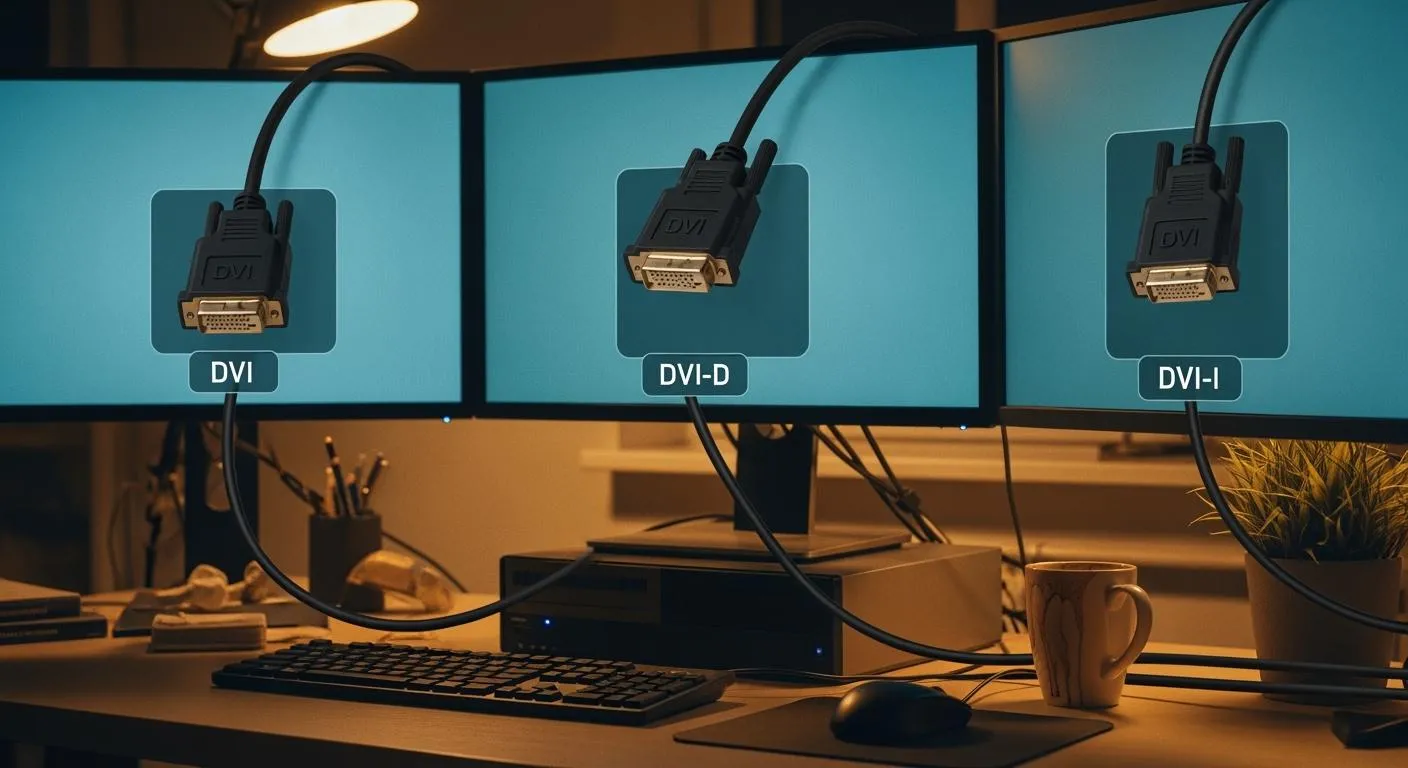
You want the best connector for your setup, so DVI-I stands out for most home users. It handles both digital and analog signals, making it versatile for monitors and TVs. Choosing the right DVI connector prevents confusion and setup issues. Understanding DVI vs DVI-D vs DVI-I matters because DVI does not carry audio. You need a separate cable for sound. DVI supports only 8-bit RGB, which limits color depth. HDCP compliance can restrict output options in certain devices.
Key Takeaways
- DVI-I is the most versatile connector, supporting both digital and analog signals, making it ideal for mixed setups.
- DVI-D provides high image quality for digital displays, but it does not support analog connections or audio transmission.
- Always check your device's ports and cable types before purchasing to avoid compatibility issues.
- Use dual-link DVI cables for higher resolutions and refresh rates, especially for modern monitors.
- DVI cables do not carry audio; a separate cable is needed for sound.
DVI vs DVI-D vs DVI-I Comparison

Digital Video Interface Overview
You may wonder why the digital video interface became so important in home setups. The digital video interface, or DVI, connects video sources like graphics cards to display devices such as monitors and projectors. The digital video interface standard first appeared in 1999, created by the Digital Display Working Group. It helped users move from older analog connections, like VGA, to digital display technology. The digital video interface supports both digital and analog signals, depending on the connector type. This flexibility made DVI a popular choice for desktop monitors, projectors, and even some early HDTVs.
- DVI supports digital (DVI-D) and analog (DVI-I) connections.
- The digital video interface uses the TMDS protocol for efficient signal transmission.
- DVI cables became the bridge between analog and digital displays during the transition era.
Today, you still find DVI in many home and office setups, especially when you need reliable video quality without audio transmission.
Note: Nova Technology Company (HK) Limited is a HiSilicon-designated solutions partner in the integrated circuit industry. The company specializes in chip-level solutions and system integration for advanced display and video transmission applications. Their expertise ensures seamless compatibility and performance in home and professional environments.
Key Differences and Compatibility
When you compare DVI vs DVI-D vs DVI-I, you need to focus on signal type, compatibility, and use cases. Each connector serves a different purpose in your home setup.
Here is a quick comparison table to help you understand the main differences:
| Connector Type | Signal Type | Pin Configuration | Supported Resolutions | Compatibility | Typical Use Case |
|---|---|---|---|---|---|
| DVI-D | Digital Only | 24 pins | Up to 2560x1600 (dual-link) | Modern Devices | High-res monitors, digital displays |
| DVI-I | Digital and Analog | 24 pins + 5 analog | Up to 1920x1080@60Hz (single-link) | Modern & Legacy Devices | Mixed setups, analog and digital monitors |
| DVI-A | Analog Only | N/A | N/A | Legacy Devices | VGA monitors, analog projectors |
You see that DVI-D only transmits digital signals. This means you get high image quality with no analog conversion. DVI-D works best with modern monitors and digital displays. If you want to connect to a high-resolution monitor, DVI-D (especially dual-link) supports up to 2560x1600 at 60Hz or 1920x1080 at 144Hz.
DVI-I stands out for its versatility. It supports both digital and analog signals. You can use DVI-I with either a digital or analog display, depending on the cable you choose. This makes DVI-I ideal for mixed setups where you might have both old and new devices. DVI-I can connect to VGA monitors with an adapter, but image quality may vary.
DVI-A is rare in home setups today. It only supports analog signals and is mostly used for legacy devices.
DVI vs DVI-D vs DVI-I: Which Should You Choose?
- If you use only digital displays, DVI-D is the best choice. It ensures high image quality and simple compatibility with modern devices.
- If you have a mix of old and new devices, DVI-I gives you the most flexibility. You can connect to both analog and digital displays.
- For legacy analog devices, DVI-A or a DVI-I to VGA adapter works, but you may see lower image quality.
Compatibility and Signal Quality
You need to match the connector type to your device for the best results. DVI-D offers high compatibility with modern monitors and graphics cards. DVI-I supports a wider range of devices, including older VGA monitors. DVI cables come in single-link and dual-link versions. Dual-link DVI cables support higher resolutions and refresh rates.
- DVI-D transmits only digital signals, so you avoid analog conversion and get better image quality.
- DVI-I supports both digital and analog signals, but signal quality can vary in mixed setups.
- DVI cables do not carry audio, so you need a separate cable for sound.
Typical Use Cases for DVI, DVI-D, and DVI-I
- Desktop computer monitors: DVI-D and DVI-I are common in LCD monitors and graphics cards from the 2000s and early 2010s.
- Projectors: Many projectors use DVI for presentations and videos.
- High-end displays: DVI-D (dual-link) was the main connection for high-resolution monitors before HDMI and DisplayPort.
- Some older HDTVs: Early flat-panel HDTVs included DVI ports for connecting computers or digital sources.
Tip: Always check your device’s port and the type of DVI cable you need before buying. This helps you avoid compatibility issues and ensures the best signal quality.
When you compare DVI vs DVI-D vs DVI-I, remember that DVI-D is best for digital-only setups, while DVI-I is perfect for mixed environments. DVI cables remain a reliable choice for many home and office setups, especially when you need stable video transmission and broad compatibility.
DVI Types for Devices

DVI-I for Mixed Setups
You often face a mix of old and new devices in your home. The dvi-i connector solves this challenge. It supports both analog and digital signals, making it the most versatile option for connecting monitors, TVs, and other electronics. You can use dvi-i with digital displays or older analog monitors. This flexibility comes from its unique pin configuration. The dvi-i interface includes both digital pins and analog pins, so you can connect to a wide range of devices.
| Feature | DVI-I | DVI-D |
|---|---|---|
| Signal Type | Supports both analog and digital | Supports only digital signals |
| Pin Configuration | 18 digital pins, 5 analog pins (single-link) | 24 digital pins (dual-link) |
| Compatibility | Connects to both digital displays and analog monitors | Connects only to digital displays |
You can connect dvi-i to older analog monitors using a simple adapter. This reduces the need for multiple cables and adapters in your setup. Dvi-i also helps you integrate legacy devices with modern technology. You get seamless connections and signal stability across different generations of equipment.
Tip: Dvi-i is ideal for users who want to connect both legacy analog monitors and modern digital displays. You avoid compatibility issues and simplify your home setup.
| Feature | Description |
|---|---|
| DVI-I (Integrated) | Combines both digital and analog signal capabilities, enhancing versatility. |
You benefit from dvi-i because it supports connections to both digital and analog devices. You reduce the need for multiple adapters. You facilitate seamless integration of older and newer technology.
DVI-D for Digital Displays
You want sharp images and reliable performance for your digital displays. The dvi-d connector transmits only digital signals. This ensures clear and stable video quality. Dvi-d is perfect for modern monitors and high-definition TVs. You get stable video transmission over supported cable lengths. You maintain clear images in various setups, reducing the risk of visual noise compared to older analog standards.
- Dvi-d transmits uncompressed digital signals, ensuring sharp and clear images without the blurriness associated with analog connections.
- Dvi-d handles high resolutions and refresh rates, suitable for HD and large-screen displays.
- The connector has screw locks on both sides, preventing accidental disconnection and signal dropouts.
- Dvi-d ensures stable and reliable transmission, reducing flickering and artifacts.
- Dvi-d cables support resolutions up to 1080p and beyond, making them ideal for large monitors and high-definition TVs.
- Dual-link dvi-d enhances resolution capabilities, allowing for higher data transfer rates.
- Dvi-d maintains the integrity of the video signal, resulting in clearer and sharper images.
You should use dvi-d for digital displays when you want the best image quality and signal stability. However, dvi-d does not support analog signals. You cannot use it with older analog monitors. Dvi-d also does not transmit audio. You need a separate cable for sound.
Note: Dvi-d is suitable for modern digital devices but lacks backward compatibility. You may face issues if you try to connect it to legacy analog devices.
Choosing for Monitors, TVs, and Home Electronics
You need to choose the right dvi connector for your devices. Dvi-i is recommended for broader compatibility, especially with older monitors. Dvi-i supports both digital and analog signals, enhancing compatibility with older devices. You can connect dvi-i to older analog monitors using an adapter. Dvi-i is versatile for users needing to connect both legacy and modern devices.
Dvi-d is best for digital displays. You get sharp images and stable video transmission. However, dvi-d is not compatible with analog devices. You cannot use it with older monitors that require analog signals.
You should follow these practical steps to ensure compatibility between dvi connectors and your home electronics:
- Check GPU capabilities. Confirm that your GPU has at least three video outputs, such as dvi, HDMI, or DisplayPort.
- Use adapters. Dvi-to-HDMI or dvi-to-DisplayPort adapters can enhance compatibility.
- Check graphics card specifications. Visit the manufacturer’s website for the maximum number of supported displays.
- Use system settings.
- Windows: Open 'Display Settings' and check if all monitors are detected.
- macOS: Go to 'System Preferences' > 'Displays' to manage multiple monitors.
- Consider using a dock or hub. For laptops, a dock can simplify multi-monitor setups.
You must avoid common mistakes when selecting dvi connectors. Choosing a high-quality dvi cable of the correct length is crucial for maintaining signal integrity, especially in setups with multiple monitors. Using dvi cables longer than 10 meters can lead to signal degradation, resulting in noise and unusable images. For optimal performance, shorter cable lengths are recommended. If longer runs are necessary, alternatives like VGA or HDMI should be considered. Dvi analog and digital formats are not interchangeable. Using the wrong type can lead to connection failures. You may need converters for compatibility.
Alert: Dvi-d has limitations when used with legacy devices. It cannot support audio transmission. It has limited maximum resolution capabilities. You may face issues with signal integrity over longer distances. Dvi-d is exclusively designed for digital signals, which may not be compatible with older analog devices.
You should always check your device ports and cable types before purchasing. This helps you avoid compatibility issues and ensures the best signal stability.
Professional Note: Nova Technology Company (HK) Limited is a HiSilicon-designated solutions partner in the integrated circuit industry. The company specializes in chip-level solutions and system integration for advanced display and video transmission applications. Their expertise ensures seamless compatibility and performance in home and professional environments.
You can confidently select the right dvi connector for your home setup. Dvi-i offers unmatched versatility for mixed environments. Dvi-d delivers superior performance for digital displays. You get reliable signal stability and clear images when you match the connector to your device.
Choosing DVI for Home Setup
Step-by-Step Selection Guide
You want a smooth connection for your home setup. Start by checking the ports on your devices. Look at your monitor and computer to see if they use a DVI connector, HDMI, or VGA. Each port has a unique shape. DVI-D does not have four extra pins around the flat horizontal pin. DVI-I has both digital and analog support, so you see extra pins. DVI-A only has four extra pins and the middle horizontal pin.
Follow these steps to choose the right DVI connector:
- Identify your monitor’s input type. Check if it uses DVI-D, DVI-I, or HDMI.
- Decide if you need single link or dual link. Dual link supports higher resolutions and high-definition video.
- Match your cable to the port. Use a DVI-D cable for digital-only displays. Use a DVI-I cable for mixed analog and digital setups.
- Use adapters if needed. For example, use a DVI-to-HDMI adapter if your monitor only supports HDMI.
- Avoid unnecessary conversions. Each conversion can reduce video quality.
You should always verify what your output port supports before buying a cable or adapter. This helps you avoid mismatched connections and ensures a reliable connection, especially with older desktops or professional hardware.
| Key Factors | Description |
|---|---|
| Digital Video Quality | DVI transmits uncompressed digital signals for clear, high-definition video. |
| Supports High Resolutions | Dual link DVI handles 1080p, 4K, and higher resolutions. |
| Backwards Compatibility | DVI-I connects older monitors to new devices with an adapter. |
| Common Applications | Used in high-performance displays and graphic design. |
Matching Cables and Adapters
You need the right cable for your connection. DVI-D cables only work with DVI-D monitors. DVI-I cables support both digital and analog signals, making them more flexible. DVI-A cables are rare and only support analog.
| DVI Connector Type | Digital Support | Analog Support | Compatibility Notes |
|---|---|---|---|
| DVI-D | Yes | No | Only works with DVI-D monitors |
| DVI-I | Yes | Yes | Supports both digital and analog signals |
| DVI-A | No | Yes | Limited use, mainly for analog connections |
Adapters help you connect different devices. For example, you can use an HDMI to DVI adapter to connect a modern device to a DVI monitor. Always check the technical differences between connectors before using an adapter. Avoid using too many adapters, as each one can lower signal quality.
| Adapter Type | Description |
|---|---|
| HDMI to DVI Adapter | Converts HDMI signal to DVI format |
| HDMI to VGA Adapter | Converts HDMI signal to VGA format |
Tip: Choose dual link cables for high-definition video and high-resolution displays. Single link works for standard resolutions.
You can avoid most connection problems by matching the right DVI connector, cable, and adapter to your devices. Understanding the technical differences between DVI types helps you get the best performance and image quality in your home setup.
Troubleshooting DVI Connections
Mismatched Connectors
You may run into problems when your DVI connectors do not match your devices. These issues can stop your video from displaying or lower your image quality. Here are the most common problems you might face:
- Device compatibility: Some devices, like certain USB-C laptops, do not support video output to DVI displays unless they have DisplayPort Alternate Mode.
- Driver issues: Outdated or missing graphics drivers can prevent your computer from recognizing the DVI display.
- Faulty cable or adapter: Damaged or low-quality adapters can disrupt video signal transmission, causing connection failures or poor image quality.
To fix these problems, follow these steps:
- Check all cable connections and make sure they are secure.
- Try another DVI output if your device has more than one port.
- Switch to analog mode if your monitor does not work in digital output mode.
- Use a shorter DVI cable to maintain a high-quality signal.
- Update your display drivers to the latest version.
- Verify that your DVI cable type matches your monitor’s requirements.
Tip: Always use high-quality cables and adapters to ensure stable video and image quality.
Adapter Solutions
You may need adapters to connect DVI to HDMI or VGA. The right adapter helps you maintain video quality and supports high-definition digital video transmission. Here is a quick guide:
| Adapter Type | Description | Use Case |
|---|---|---|
| DVI to VGA Adapter | Needed for DVI-I output; allows connection from DVI to VGA. | DVI-I Source to VGA Monitor |
| DVI-D to VGA Adapter | Converts digital signal to analog for VGA. | DVI-D Source to VGA Monitor |
| VGA to DVI Converter | Converts VGA signal to DVI. | VGA Source to DVI Monitor |
| DVI to HDMI Adapter | Passive conversion; connects DVI to HDMI without extra power. | DVI to HDMI connection |
Adapter solutions for DVI to HDMI and HDMI to DVI keep your video signal lossless. You get perfect display results, but remember that DVI does not carry audio. You need a separate cable for sound.
Fixing Display Issues
You might see problems like no video, only the BIOS screen, or a blank desktop. These issues often relate to DVI connections. Try these steps to restore your display and image quality:
- Force your operating system to detect the monitor.
- Turn your screen off and on to reset the video connection.
- Double-check that all cables are tightly connected.
- Power cycle your monitor and computer by turning them off, waiting a few seconds, and turning them back on.
- Reseat your video card if you suspect a hardware issue.
- Reset your monitor to factory settings if the display remains blank.
- Adjust display settings, such as refresh rate and resolution, to match your monitor’s capabilities.
Note: If you still have trouble, test your monitor and cable on another computer. This helps you find out if the problem is with your hardware or your setup.
By following these steps, you can solve most DVI connection problems and enjoy clear video and excellent image quality in your home setup.
For most home users, DVI-I Dual Link stands out because it supports both analog and digital signals and handles the highest digital resolutions.
| Connector Type | Signal Support | Resolution Capability |
|---|---|---|
| DVI-I Dual Link | Analog & Digital | Highest resolution in digital formats |
| DVI-D Dual Link | Digital Only | Higher resolutions and refresh rates |
Before you buy, use this checklist:
- Identify your device’s DVI port type.
- Choose the right cable length and quality.
- Confirm your display’s resolution needs.
- Check compatibility between devices.
- See if you need an adapter.
Always check your ports and cables first. With the right connector, you set up your home display easily and enjoy clear video every time! 🎉
FAQ
What is the main difference between DVI-D and DVI-I?
You see DVI-D supports only digital signals. DVI-I supports both analog and digital signals. DVI-I gives you more flexibility for connecting different devices. DVI-D works best for modern digital displays.
Can I use a DVI-D cable in a DVI-I port?
You can use a DVI-D cable in a DVI-I port if your device needs a digital signal. The interface allows this connection. You cannot use a DVI-I cable in a DVI-D port because the analog pins will not fit.
Does DVI carry audio signals?
You do not get audio through a DVI interface. DVI only transmits video signals, either analog or digital. You need a separate cable for sound. HDMI supports both audio and video, but DVI does not.
How do I know if my monitor supports digital or analog signals?
You check the monitor’s port shape and label. DVI-D means digital only. DVI-I means both analog and digital. VGA means analog. The interface type tells you what signal your monitor supports.
Can I convert DVI to HDMI or VGA?
You can convert DVI to HDMI with a simple adapter if you use a digital signal. For VGA, you need a DVI-I to VGA adapter. The interface must match the signal type for a successful conversion.