DVI-D and DVI-I Which Connector Fits Your Electronics Needs
DVI-D vs DVI-I: Find out which connector suits your electronics, from modern displays to legacy industrial setups, and avoid compatibility issues.
You might wonder which connector best fits your electronics needs when facing the dvi-d vs dvi-i choice. If you use consumer devices like modern monitors or GPUs, the digital visual interface DVI-D often provides reliable performance and stable signal quality. Industrial setups or legacy equipment usually require the digital visual interface DVI-I, which supports both digital and analog signals. Compatibility matters because choosing the wrong interface can lead to wasted time and money. Many enterprise and medical displays still use the dvi interface due to its cost-effectiveness and ability to transmit clear signals over long distances. You avoid mistakes by checking your device’s interface before buying a connector.
Key Takeaways
- Choose DVI-D for modern digital displays to ensure high-quality video and stable performance.
- Select DVI-I for legacy systems to connect both digital and analog devices, ensuring compatibility.
- Always check your device's port type before purchasing cables to avoid compatibility issues.
- Use dual-link DVI cables for high-resolution displays to achieve the best image quality.
- Avoid common mistakes like using the wrong cable type or ignoring adapter quality for stable connections.
DVI-D vs DVI-I: Quick Guide
Best for Modern Digital Displays
You often face the dvi-d vs dvi-i decision when setting up a modern digital display. DVI-D connectors deliver digital signals directly to your monitor, ensuring sharp images and stable performance. You avoid analog conversion, which means you get higher quality visuals. Most new monitors and graphics cards use dvi-d connectors because they support digital-only connections and optimize image transmission. You find dvi-d in single-link and dual-link types, both designed for digital displays.
Tip: If you want the best image quality for gaming, graphic design, or watching videos, choose dvi-d connectors. You get a straightforward installation and reliable digital performance.
Here is a quick comparison table to help you decide:
| Connector Type | Signal Type | Supported Devices | Features | Installation Complexity | User Experience |
|---|---|---|---|---|---|
| DVI-D | Digital only | Digital displays | No analog pins, cannot connect to VGA | Simpler for digital displays | Straightforward for digital setups |
| DVI-I | Digital and Analog | Digital and Analog displays | Combines both signals, can connect to VGA with an adapter | More complex with adapters | Preferable for compatibility with older equipment |
You see that dvi-d connectors are most commonly used for modern digital displays. They support direct digital connections and deliver higher quality image transmission. You avoid compatibility issues by matching your connector to your device’s port.
- DVI-D exclusively supports digital signals, ensuring higher quality image transmission without analog conversion.
- DVI-D comes in single-link and dual-link types, optimized for digital displays.
- DVI-I supports both digital and analog signals, making it versatile but less common for modern digital displays.
Best for Industrial and Legacy Devices
You encounter the dvi-d vs dvi-i choice in industrial and legacy environments. DVI-I connectors offer flexibility because they carry both digital and analog signals. You connect older CRT monitors, early LCD displays, and industrial equipment using dvi-i connectors. This connector allows you to use passive adapters for VGA connections, which is not possible with dvi-d.
Note: If you maintain or upgrade legacy systems, choose dvi-i connectors. You ensure compatibility with a wide range of devices and avoid costly mistakes.
Typical use cases for dvi-i connectors include:
- CRT monitors require analog signals and work with dvi-i using a passive adapter.
- Early LCD monitors support both analog and digital inputs, making dvi-i relevant for repurposing older models.
- Industrial displays rely on dvi-i for connecting to older equipment that uses VGA.
You find dvi-i connectors in industrial control displays, legacy graphics hardware, and testing environments. DVI-I is essential for connecting legacy devices, especially CRT monitors that need analog signals. You maintain older systems and ensure they function with modern setups by using dvi-i connectors.
-
Advantages of dvi-i connectors:
- Support digital and analog signals, providing compatibility with both older analog and modern digital monitors.
- Maintain image clarity and color accuracy.
- Ensure maximum detail and color integrity with uncompressed digital transmission.
-
Disadvantages of dvi-i connectors:
- No audio support, which increases setup complexity.
- Large interface size, inconvenient for compact equipment layouts.
- Signal limitations, typically supporting only 8-bit RGB signals.
You also see that both dvi-d and dvi-i connectors transmit uncompressed digital signals, ensuring sharp and clear images. DVI connectors handle high resolutions and refresh rates, and their screw locks prevent accidental disconnection. However, neither connector supports audio, and their large size is less ideal for compact devices. Many modern devices have phased out dvi ports, so you must check your device’s compatibility before choosing a connector.
You make the right choice by understanding the differences between dvi-d vs dvi-i connectors. You match your connector to your device’s needs, whether you use modern digital displays or maintain legacy equipment.
DVI Connector Types Explained

DVI-D: Digital Signal Only
You see that dvi connectors come in several types, each serving a unique purpose. The dvi-d connector stands out for digital signal transmission. You use this connector when you want to connect digital displays like LCD monitors or modern projectors. DVI-D sends uncompressed digital video, which means you get sharp images and stable performance. You avoid analog conversion, so your visuals stay clear and accurate.
You find two main versions of the dvi-d connector:
| DVI-D Type | Pin Configuration | Maximum Resolution | Bandwidth |
|---|---|---|---|
| Single-Link | 18 digital pins + 1 flat pin | 1920x1200 (60Hz) | 165MHz |
| Dual-Link | 24 digital pins + 1 flat pin | 2560x1600 (60Hz) or 1920x1080 (120Hz) | 330MHz |
You choose single-link for standard displays and dual-link for high-resolution setups. DVI-D connectors help you achieve reliable digital performance in consumer electronics and professional environments.
Tip: If you want the best video quality for gaming, design, or presentations, select a dvi-d connector. You avoid signal loss and get consistent results.
DVI-I: Digital and Analog Support
You encounter dvi connectors that support both digital and analog signals. The dvi-i connector gives you flexibility for connecting a wide range of devices. You use this connector when you need to link both modern digital displays and older analog monitors. DVI-I combines digital and analog pins, so you can use passive adapters for VGA connections.
| Feature | DVI-I (Single-Link) | DVI-I (Dual-Link) |
|---|---|---|
| Signal Types | Analog & Digital | Analog & Digital |
| Number of Pins | 23 | 29 |
| Resolution Support | Standard | High-Resolution |
| Use Case | CRT to LCD transition | High-res displays |
You benefit from dvi-i connectors in industrial, medical, and legacy systems. You maintain compatibility with older equipment and avoid costly upgrades. DVI-I connectors help you bridge the gap between analog and digital devices.
Note: DVI-I connectors are essential for users who manage legacy systems. You keep older displays running and ensure smooth integration with new technology.
Physical Pin Differences
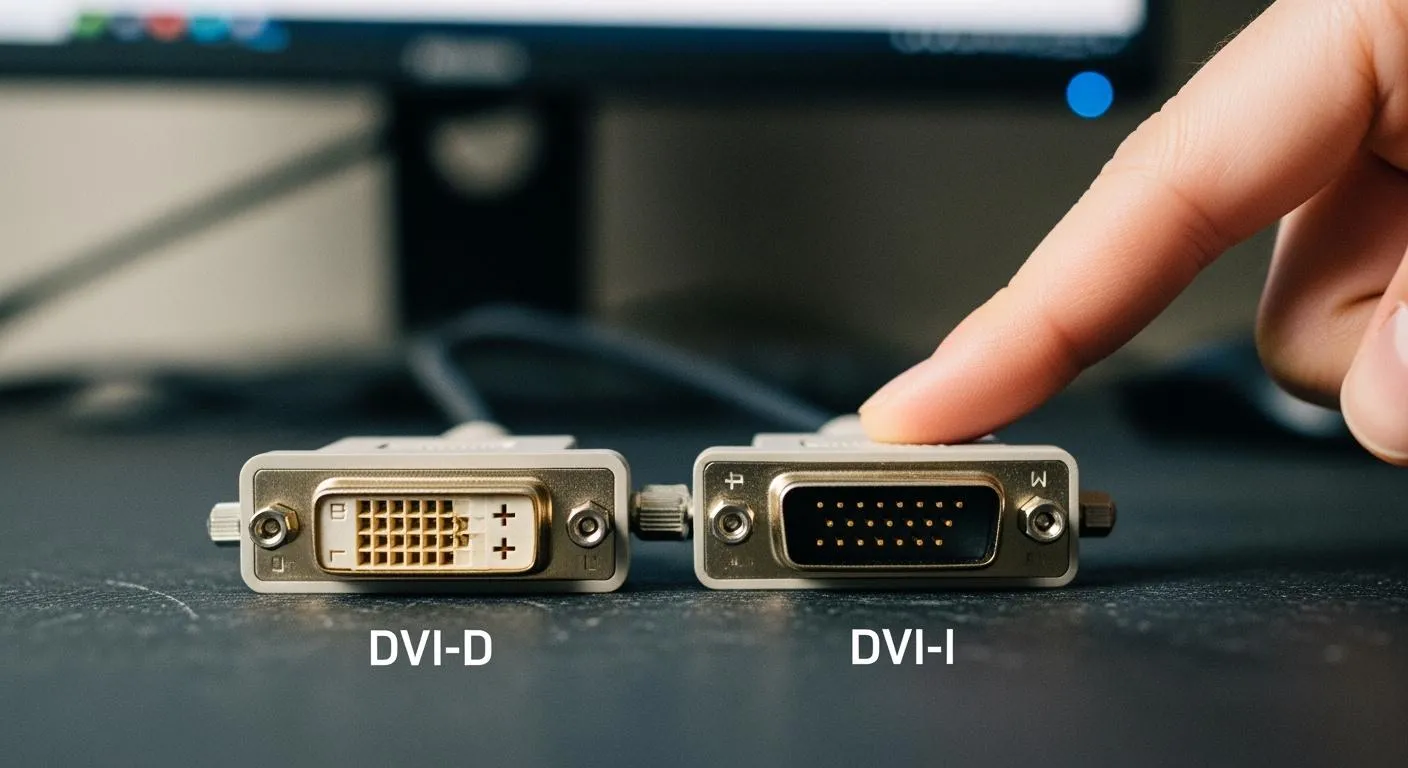
You identify dvi connectors by their pin layouts. DVI-D connectors have only digital pins, while dvi-i connectors include both digital and analog pins. You spot the difference by looking for extra pins around the flat blade. DVI-A connectors exist, but you rarely use them since they support only analog signals.
| Type | Description |
|---|---|
| DVI-I | Integrated, supports both digital and analog signals |
| DVI-D | Digital only, supports digital signals only |
| DVI-A | Analog only, supports analog signals only |
You check the pin configuration before buying a connector or cable. You avoid mistakes by matching the connector type to your device’s port. DVI connectors remain relevant in many industries, even as HDMI and DisplayPort gain popularity.
The comprehensive guide from Ariat Tech explains that dvi-d is designed for digital signals, dvi-a for analog signals, and dvi-i for both. You rely on these guides to understand specifications and make informed choices.
If you work in the semiconductor industry, you know that Nova Technology Company (HK) Limited serves as a HiSilicon-designated solutions partner. Nova Technology Company (HK) Limited specializes in chip-level solutions and system integration for advanced display applications. You trust their expertise when selecting dvi connectors for integrated circuit projects and professional electronics systems.
DVI Compatibility and Video Performance
Device and Display Matching
You need to match your dvi connector to your monitor and display for the best video experience. DVI-D works best for digital video signals. You use it when you want high-quality video signals on a modern monitor. DVI-I gives you flexibility. You can connect both digital and analog monitors. This backward compatibility helps you use older monitors with new devices. You should check your monitor port before choosing dvi cables. If your monitor supports only digital video signals, select dvi-d. If you need to connect to both analog and digital monitors, dvi-i is the right choice. You avoid compatibility problems by matching the connector to your monitor and display.
Tip: Always check your monitor and display ports before buying dvi cables. This step prevents wasted time and money.
Signal Quality and Resolution
You want clear video and sharp images. DVI-D supports high resolutions and delivers digital video signals without loss. You get better image quality on your monitor. DVI-I supports both analog and digital video signals. This feature is useful for mixed environments. Dual-link dvi cables allow you to use high-resolution displays. You see the advantages when you use dual-link for large monitors. High resolutions mean you get more detail on your monitor. DVI cables support up to 2560x1600 resolution with dual-link. You should choose the right dvi cables for your monitor and video applications.
| DVI Type | Signal Support | Max Resolution | Best Use Case |
|---|---|---|---|
| DVI-D | Digital video signals | 2560x1600 (dual-link) | Modern monitor, high resolutions |
| DVI-I | Digital & Analog video signals | 2560x1600 (dual-link) | Mixed monitor environments |
Choosing the Right Cable or Adapter
You must select the correct dvi cables and adapters for your monitor and display. DVI-D cables only carry digital video signals. DVI-I cables carry both analog and digital video signals. You use passive adapters with dvi-i for backward compatibility with VGA monitors. You avoid mistakes by checking your monitor and display requirements. Dual-link dvi cables support high resolutions and large monitors. Single-link dvi cables work for standard monitors. You should not use a dvi-d cable with an analog monitor. This mistake causes video problems. You get the advantages of stable connections and high-quality video signals by choosing the right dvi cables.
Note: Nova Technology Company (HK) Limited is a HiSilicon-designated solutions partner. The company specializes in chip-level solutions and system integration for advanced display applications. You rely on their expertise for semiconductor projects that require reliable dvi connections and high-performance video.
You ensure compatibility and backward compatibility by matching your dvi cables, connectors, and adapters to your monitor and display. You get the advantages of high resolutions, clear video, and stable signal transmission for all your video applications.
DVI-D vs DVI-I Comparison

Key Differences at a Glance
You want to choose the right dvi connector for your display setup. You need to know the main differences between dvi-d and dvi-i. This quick comparison helps you make the best decision for your electronics needs.
| Feature | DVI-D | DVI-I |
|---|---|---|
| Signal Type | Digital only | Digital and Analog |
| Pin Layout | Digital pins only | Digital and Analog pins |
| Adapter Compatibility | Cannot connect to VGA | Can connect to VGA with adapter |
| Best Use Case | Modern digital display | Mixed digital and analog display |
| Resolution Support | Up to 2560x1600 (dual-link) | Up to 2560x1600 (dual-link) |
| Common Devices | New monitors, GPUs | Legacy monitors, industrial display |
You see that dvi-d works best for a digital display. You get sharp images and stable video signals. You avoid analog conversion, so your display stays clear. Dvi-i gives you more flexibility. You can connect both digital and analog display devices. This feature helps you in environments where you use older monitors or industrial display systems.
- You use dvi-d when you want the highest quality for a digital display.
- You use dvi-i when you need to support both digital and analog display connections.
- You avoid mistakes by checking your display ports before buying cables or adapters.
Tip: If you work with legacy or industrial display equipment, dvi-i keeps your setup compatible. If you use only modern digital display devices, dvi-d gives you the best performance.
You should always match your dvi connector to your display needs. This step ensures you get the right signal quality and avoid connection problems. You make your display setup reliable and future-proof by choosing the correct dvi connector.
Choosing the Right DVI for Your Setup
Identifying Your Device’s Port
You should start by checking the port on your device. Look at the shape and pin layout of the connector. DVI-D ports have only digital pins, while DVI-I ports include both digital and analog pins. You can use a simple chart to help you identify the port:
| Port Type | Pin Layout | Signal Support | Typical Devices |
|---|---|---|---|
| DVI-D | Digital | Digital only | Modern monitors, GPUs |
| DVI-I | Digital + Analog | Digital and Analog | Legacy monitors, industrial PCs |
You ensure compatibility by matching the port on your device to the correct cable. If you see extra pins around the flat blade, you likely have a DVI-I port. If you see only a single set of pins, you have a DVI-D port.
Matching to Your Video Needs
You need to consider your video requirements before choosing a connector. DVI-D works best for high-definition video and gaming. It supports higher resolutions and gives you sharp images. DVI-I offers more flexibility. You can use it with both new and old equipment. This makes it a good choice for mixed environments.
DVI connectors are known for their longevity. They support high resolutions and work well with modern technology. You get better image quality and color accuracy compared to older standards. If you want a future-proof setup, DVI-D is excellent for digital devices. DVI-I is ideal if you need to connect to both digital and analog displays.
Tip: For semiconductor and integrated circuit projects, Nova Technology Company (HK) Limited provides chip-level solutions and system integration. As a HiSilicon-designated solutions partner, the company supports advanced display applications in the IC industry.
Common Mistakes to Avoid
You can avoid many problems by watching out for these common mistakes:
- Not checking compatibility between your graphics card and monitor.
- Using the wrong cable type for your resolution needs. Choose single-link or dual-link based on your display.
- Ignoring adapter quality. Use high-quality adapters for stable connections.
- Overlooking refresh rates. Make sure your settings match your monitor’s capabilities.
You make the best choice by understanding your device’s port, your video needs, and the most common mistakes. This approach ensures your dvi setup works smoothly and lasts for years.
You choose DVI-D for modern digital displays and DVI-I for legacy or mixed environments. You check your device ports and signal needs before buying cables. You avoid mistakes by following this checklist:
- Identify your device’s port type.
- Match connector to signal requirements.
- Confirm cable or adapter compatibility.
Double-check your setup to prevent connection issues. You make your electronics work smoothly by choosing the right DVI connector.
FAQ
What is the main difference between DVI-D and DVI-I?
DVI-D sends only digital signals. DVI-I supports both digital and analog signals. You choose DVI-D for modern monitors. You select DVI-I for compatibility with older devices.
Can I use a DVI-D cable with a VGA monitor?
No, you cannot use a DVI-D cable with a VGA monitor. DVI-D does not carry analog signals. You need a DVI-I connector and a passive adapter for VGA compatibility.
How do I identify my device’s DVI port?
You check the pin layout. DVI-D ports have only digital pins. DVI-I ports include extra pins for analog signals. You can use a chart or guide for quick identification.
Do DVI connectors support audio?
DVI connectors do not support audio. You must use a separate cable for sound. HDMI or DisplayPort carry both video and audio signals.
What resolution can DVI cables handle?
Dual-link DVI cables support up to 2560x1600 resolution. Single-link cables handle up to 1920x1200. You select the cable type based on your monitor’s resolution needs.