What Causes a Slower Playback Sample Rate Mismatch in 2026
So, what causes a slower playback sample rate mismatch? It's fundamentally a hardware timing and synchronization p
So, what causes a slower playback sample rate mismatch? It's fundamentally a hardware timing and synchronization problem. This issue arises when your audio hardware's internal clock runs at a different speed than your project's required sample rate. This conflict forces your audio playback to be slower and lower in pitch, making the audio sound incorrect.
This is essentially a hardware synchronization failure. It means different digital audio devices in your setup, including the audio interface, are not "ticking" at the same rate required for proper audio playback.
The core of the issue is identifying the "master clock." This one device dictates the true sample rate, and every other piece of audio hardware, like your interface, must follow it to achieve perfect audio.
Key Takeaways
- A slower playback sample rate mismatch happens when your audio hardware's clock speed does not match your project's required sample rate.
- This problem makes your audio play slower and sound lower in pitch, because the hardware reads the audio data at the wrong speed.
- The main cause is a hardware timing problem, often from your audio interface, computer motherboard, or bad cables.
- To fix it, you must find the 'master clock' in your audio setup and make sure all other devices and software follow its timing.
- Always check your audio interface settings, ensure good cable connections, and set one device as the main clock source.
Core Hardware Cause: Sample Rate Clock Mismatches
The root of slow audio playback is a disagreement between digital clocks. Your software project has a required sample rate, but your hardware is operating at a different one. This forces a conversion that results in slower, lower-pitched audio. The entire problem boils down to which piece of hardware is the true "master clock" and which devices are failing to follow its timing.
Audio Interface Clock Conflicts
Your audio interface is a common source of conflict. The driver software that connects the interface to your computer plays a huge role. Incorrect audio settings within the driver control panel, such as for an ASIO driver, can lock the hardware to the wrong sample rate. Your Digital Audio Workstation (DAW) might request 48kHz audio, but if the interface driver is fixed at 44.1kHz, you will get a mismatch.
This conflict often happens in a few key scenarios:
- The project's audio sample rate in your software does not match the active sample rate of the audio interface.
- The interface is set to receive an external clock signal, but no such signal is present or synchronized.
- Multiple digital audio devices are connected, and each one is trying to act as the master clock instead of slaving to a single source.
Pro Tip: A common error message like "Error while trying to synchronize Audio and MIDI" is a clear sign that your DAW and audio hardware are not synchronized. Checking your interface's clock source in its control panel is the first step.
System and Motherboard Clock Conflicts
Sometimes the issue is deeper than a simple driver setting. The conflict can originate from the computer's motherboard or other internal components. The highest quality clock signal is generated as close to the audio converter (DAC) as possible. An external clock signal must travel over a cable, which can degrade the signal and introduce timing errors called jitter.
Even within a single system, different digital components can have slightly different clock phases. This means their timing signals are not perfectly aligned. These tiny latency differences can disrupt the sensitive audio data stream. Ultimately, this fundamental hardware timing disagreement is what causes a slower playback sample rate mismatch. It creates instability in the audio playback chain, leading to the incorrect speed and pitch you hear. The stability of your entire audio setup depends on a single, clean clock source that every component can follow precisely.
Key Hardware Affecting Audio Playback
The slow playback problem is not just a single setting. It is an issue rooted in the physical hardware responsible for your audio. Several key components in your studio setup can be the source of the clocking conflict that ultimately corrupts your sound.
Audio Interfaces and Converters
Your audio interface is the heart of your digital audio setup, but it can also be a primary source of timing conflicts. The device's driver software is a critical link. Incorrect audio settings in the control panel, such as for an ASIO driver, can force the hardware to operate at a sample rate that doesn't match your project.
Common driver-related mistakes include:
- Configuring the audio interface to 48kHz in its control panel while your project software is set to 44.1kHz.
- Setting the interface to receive an external clock signal when no such signal is connected, causing it to wait for a timing reference it never receives.
- Recording audio at one sample rate (e.g., 44.1kHz) but having the interface driver set to another (e.g., 48kHz) during playback, resulting in slowed-down audio.
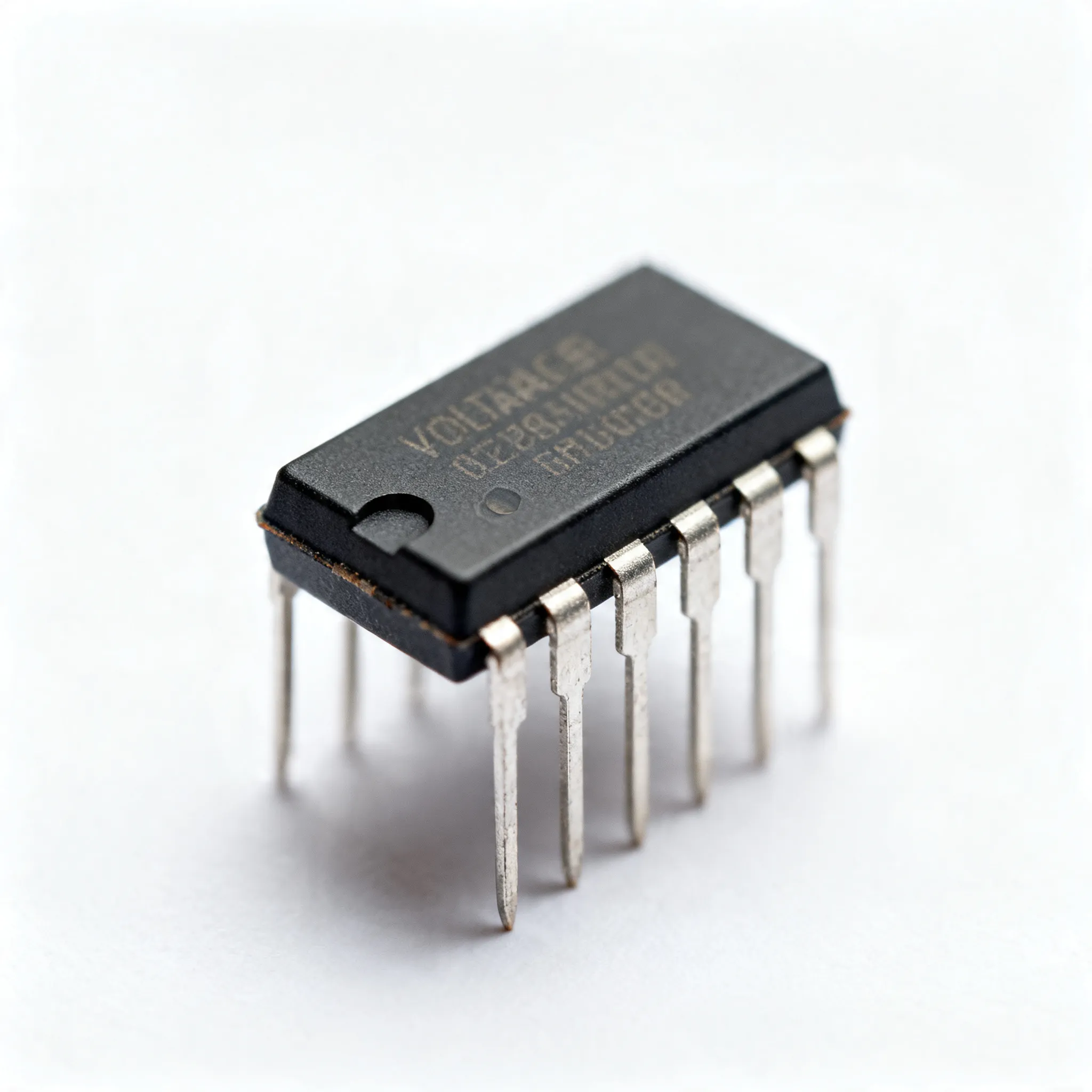
Beyond the driver, the quality of the interface's internal components is crucial. The stability of the internal crystal oscillator, the component that generates the clock signal, directly impacts timing accuracy. A high-quality oscillator has minimal frequency drift, often measured in just a few parts per million. This stability is vital for the Analog-to-Digital (A/D) converter, as even tiny timing errors, known as jitter, can introduce permanent noise and distortion into your audio recordings. With older hardware, these crystal oscillators can age and become less stable, especially with temperature changes. This clock drift can cause audible problems like random noise, distortion, or even missing audio frames.
Inside the Tech ⚙️ The engineering behind a stable clock starts at the semiconductor level. This is where specialized integrated circuit (IC) firms play a vital role. For example, a company like Nova Technology Company (HK) Limited, a HiSilicon-designated solutions partner, focuses on chip-level system integration. Their expertise helps ensure that the core components inside audio hardware are designed for maximum clock stability, preventing mismatch issues before the device is even built.
Ultimately, a modern audio interface with a high-quality internal clock often provides a more stable signal than an external source because the signal path is shorter and less prone to degradation.
Digital Cable and Port Integrity
The connections between your devices are just as important as the devices themselves. Data transmission errors over faulty or low-quality USB, Thunderbolt, or optical cables can disrupt the delicate clocking information embedded within the audio data stream.
High-speed cables are complex pieces of engineering. A quality Thunderbolt cable, for instance, contains coaxially shielded conductors and precisely engineered internal wiring to ensure data and timing signals arrive without errors. A damaged or poorly made cable can easily corrupt this information, causing the receiving device to lose sync.
This is especially true for digital audio connections like ADAT and S/PDIF, which operate on a master/slave principle.
- Master: One device is set to use its internal clock. It generates the timing for the entire system.
- Slave: All other connected devices are set to receive their clock from the master device's signal.
If you fail to establish this clear hierarchy—for example, by setting two connected devices to be the master—their clocks will fight each other. This creates severe synchronization problems, leading to loud pops, clicks, and entirely unusable audio. The system has no single source of truth for its timing, causing constant errors in the audio playback.
External Word Clock Generators
In complex studio setups with multiple digital devices, a dedicated external word clock generator is often used to ensure perfect synchronization. Instead of daisy-chaining devices and passing the clock from one to the next, a word clock generator provides a single, ultra-stable timing reference to every piece of hardware in a "star" configuration. This method dramatically reduces jitter because each device gets a clean clock signal directly from the source.
However, this solution introduces its own potential point of failure: the cabling.
- Cable Type: Word clock signals require true 75-ohm coaxial cables with BNC connectors. Using the wrong type of cable will degrade the signal.
- Termination: The last device in a word clock chain must have a 75-ohm terminator engaged. If it is not properly terminated, the clock signal can reflect back down the cable.
These signal reflections corrupt the timing reference for every device in the chain, leading to audio dropouts, distortion, and a complete loss of synchronization. This failure to maintain a clean, properly terminated clock signal across all connected hardware is a classic example of what causes a slower playback sample rate mismatch in a professional environment.
Identifying and Fixing Hardware Mismatches
Solving slow audio playback requires a systematic approach. This process of troubleshooting audio helps you find the exact hardware conflict. The goal is to make sure your software and all your audio gear agree on one single timing source.
Verify Your Interface's Active Sample Rate
Your first step in troubleshooting audio is to check the audio interface. The driver software is often the source of the problem.
- Open the control panel for your audio interface. This is separate from your DAW's audio settings.
- Find the active sample rate setting.
- Confirm this rate matches the sample rate of your project.
- Adjust the driver's audio settings if they do not match.
Important Note: Some applications can take exclusive control of your driver and change its audio settings without you knowing. Always check the driver control panel directly for the most accurate information. This is a key step for troubleshooting audio.
Establish a Clear Master Clock Source
Your audio system needs one leader. Every piece of digital audio equipment must follow a single master clock to stay in sync. Confusion here is a primary reason for what causes a slower playback sample rate mismatch.
- Simple Setup: If you only use one audio interface, set its clock source to "Internal." This makes the interface the master clock for your audio.
- Complex Setup: If you use multiple digital audio devices, you must choose one to be the master. Set all other devices to slave to that master clock source via their digital inputs (e.g., ADAT, S/PDIF, Word Clock).
This simple check is a vital part of troubleshooting audio. Correct audio settings ensure stable playback.
Inspect and Test Physical Connections
Faulty cables can corrupt the timing data essential for clean audio playback. This final step of troubleshooting audio involves checking your physical connections.
- USB/Thunderbolt: Swap your main interface cable with a new, high-quality one. A damaged cable can disrupt the driver communication.
- Digital Audio Cables: Ensure all ADAT or S/PDIF cables are securely connected.
- Word Clock: If you use an external clock, verify you are using 75-ohm BNC cables and that the last device in the chain is properly terminated.
A secure physical connection is necessary for the driver to manage your audio playback correctly. Reviewing your audio settings and connections will resolve most playback speed issues.
Ultimately, what causes a slower playback sample rate mismatch is a hardware synchronization failure. It is not a software bug or a corrupted audio file. The problem is a conflict between the sample rate your audio software expects and the actual rate your master hardware clock dictates. This mismatch affects all audio playback. The quality of your audio depends on this timing. Your audio will sound wrong without correct sync.
The solution is always the same. You must identify the true master clock in your audio setup. Then, you must configure all other software and audio devices to follow its timing for perfect audio playback.
FAQ
Can software alone cause a sample rate mismatch?
No, this is fundamentally a hardware issue. Software settings can trigger the problem, but the root cause is always a conflict between hardware clocks. Your software simply reveals the existing hardware disagreement, which affects all audio playback.
Why does the audio pitch get lower?
The audio file contains a set number of samples per second. When the hardware clock runs slower than the project's rate, it reads those samples too slowly. This stretches the audio out, lowering its speed and pitch. It is a direct result of incorrect audio timing.
Will a more expensive interface fix my audio sync?
A high-quality interface often has a more stable internal clock. This can reduce the chances of drift and improve overall audio stability. However, incorrect configuration will still cause mismatches. Proper setup is more important than price for good audio.
Remember 💡 The core solution is always the same: establish one master clock and ensure all other devices and software follow it. This rule applies to every audio setup.
Does this problem damage my original audio files?
No, the issue does not corrupt your saved audio files. The problem occurs during real-time playback when the hardware reads the audio data incorrectly. Your original files remain safe on your drive. Correcting the clock settings will restore proper audio playback.