How the Mini USB to USB Pinout Works
You need to know how the mini usb to usb pinout works to connect devices safely. The pinout uses five pins: VCC for power, D
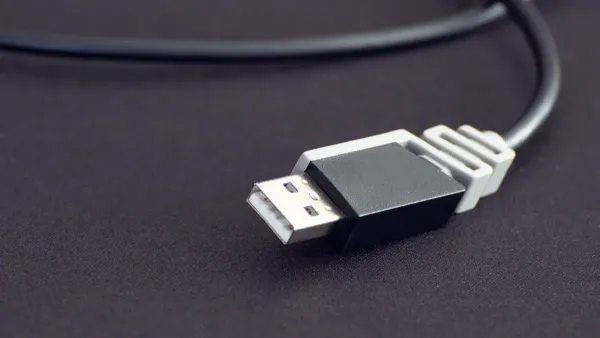
You need to know how the mini usb to usb pinout works to connect devices safely. The pinout uses five pins: VCC for power, D+ and D- for data transfer, GND for ground, and ID for device identification. If you understand each pin’s role, you can match cables and ports correctly. This knowledge helps you avoid connection failures and protects your devices from damage.
Tip: Always check the pinout before plugging in a usb cable to prevent short circuits.
Key Takeaways
- Understand the five pins in a mini USB to USB connection: VCC, D+, D-, ID, and GND. Each pin has a specific role that ensures safe connections.
- Always check the USB pinout diagram before connecting devices. This prevents mistakes that can damage your devices.
- Use high-quality USB cables to ensure reliable power and data transfer. Poor cables can lead to connection issues and device damage.
- Inspect USB connectors for damage or dirt before use. Clean connectors help maintain stable connections and prevent errors.
- Know the role of the ID pin in USB connections. It determines if your device acts as a host or a slave, especially in USB On-The-Go setups.
Mini USB to USB Pinout
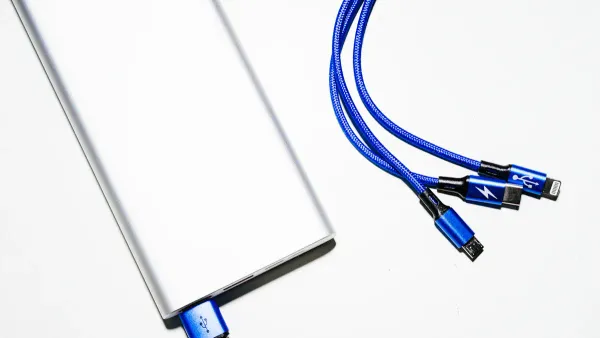
USB Pinout Diagram
When you look at a mini usb to usb pinout, you see five main pins. Each pin has a specific job. The usb pinout diagram below shows the layout and functions of these pins. This helps you understand how to connect your devices safely.
| Pin Number | Signal | Color | Description |
|---|---|---|---|
| 1 | VCC | Red | Provides power (+5V) |
| 2 | D- | White | Data transfer (negative) |
| 3 | D+ | Green | Data transfer (positive) |
| 4 | ID | N/A | Identifies cable or device |
| 5 | GND | Black | Ground |
Note: Always check the usb pinout diagram before connecting a usb cable. This prevents damage to your device.
You will notice that the mini usb connector uses five pins, while some standard usb connectors use only four. The extra pin, called the ID pin, helps with device identification.
Pin Functions
Each pin in the usb pinout has a unique function. You need to know what each pin does to use the correct usb pinout configuration.
- Pin 1 (VCC): This pin supplies +5V power to your device. Most usb connectors use this voltage. The current rating for VCC is 500 mA for usb 2.0 and 900 mA for usb 3.0.
- Pin 2 (D-): This pin handles data transfer. It works with D+ to send and receive information.
- Pin 3 (D+): This pin also manages data transfer. D+ and D- form a differential pair. This means they send signals in opposite directions to reduce noise and improve signal quality. The usb 2.0 standard supports data transfer rates up to 480 Mbps.
- Pin 4 (ID): This pin identifies the cable or device. It tells the device if it should act as a host or a slave.
- Pin 5 (GND): This pin connects to ground. It completes the circuit and keeps your connection stable.
You can see the differences between mini usb and standard usb connectors in the table below:
| Pin | Signal | Color | Description |
|---|---|---|---|
| 1 | VCC | Red | +5V |
| 2 | D- | White | Data- |
| 3 | D+ | Green | Data+ |
| 4 | ID | N/A | USB OTG ID |
| 5 | GND | Black | Ground |
The mini usb to usb pinout gives you an extra ID pin. Standard usb connectors, like usb type-A, do not use this pin. This difference helps you identify the right connector for your device.
ID Pin Role
The ID pin plays a key role in the mini usb to usb pinout. You use this pin to help your device decide if it should act as a host or a slave. When the ID pin connects to ground, your device becomes the host. When the ID pin is not connected (floating), your device acts as a slave.
| Device Mode | ID Pin Connection |
|---|---|
| Host | Connected to Ground (GND) |
| Slave | Not Connected (Floating) |
The ID pin is important for usb On-The-Go (OTG) connections. If you want your device to control another device, the ID pin must connect to ground. If you want your device to be controlled, the ID pin should stay floating.
Tip: Always check the ID pin status when setting up a usb OTG connection. This ensures your device works in the correct mode.
The usb pinout helps you make safe and reliable connections. You avoid mistakes by understanding each pin’s job. This knowledge protects your devices and keeps your data transfer smooth.
USB Pinout Mapping
Power Pins
The power pins in a usb connector play a critical role in device charging and operation. You find the VCC pin in every usb pinout. This pin supplies +5V power to your device. If you want safe and reliable charging, you need to use the right wire gauge in your cable.
- 20 AWG wire can handle up to 3.65 amperes with a voltage drop of about 0.5V for a 2-meter cable.
- The resistance of 20 AWG copper wire is 10.15 milliohms per foot, which leads to a power loss of about 135 milliwatts per foot.
- This wire can work safely in temperatures up to 90°C.
If you connect the power pins incorrectly, your device may not charge properly. Sometimes, the device shows a charging icon, but the battery does not increase. Over time, this can damage your device and cause frustration.
Always check the usb pinout before connecting a cable. This helps you avoid power issues and keeps your devices safe.
Data Pins
The data pins, labeled D+ and D-, control all data transfer between your device and the host. These pins send and receive information, making them essential for file transfers, syncing, and device updates. The usb pinout places these pins in the center of the connector for stability.
If you misalign the data pins, you risk damaging the usb connector. This can disrupt the electrical signals needed for data transfer. You may notice unstable connections, incomplete file transfers, or even file corruption. Always insert the connector straight and check the usb pinout to avoid these problems.
Tip: If your device fails to sync or transfer files, inspect the data pins for damage or misalignment.
Ground Pin
The ground pin, marked as GND in the usb pinout, completes the electrical circuit. This pin keeps your connection stable and protects your device from electrical faults. A faulty ground pin can cause several problems:
- USB communication errors
- Possible damage to your device
- Increased risk of electromagnetic interference (EMI)
You should always make sure the ground pin in your usb connector is clean and undamaged. A good ground connection ensures safe data transfer and device operation.
Note: If you experience frequent connection drops, check the ground pin for dirt or wear.
A clear understanding of the usb pinout helps you make safe connections. You protect your devices and ensure smooth data transfer by checking each pin in your usb connector.
Device Connection
Compatibility
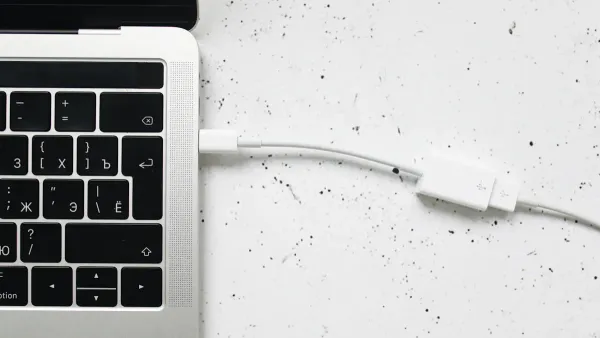
You need to match the correct usb pinout when you connect devices. Each pin in the usb connector has a special job. If you use the right usb cable, your device can charge, transfer data, and work as expected. For example, when you connect a camera to your computer with a mini usb to usb cable, the VCC pin supplies power, the D+ and D- pins handle data transfer, and the GND pin keeps the connection stable. The ID pin helps your device know if it should act as a host or a slave.
Correct pinout identification improves device compatibility. Each pin in the usb pinout has a unique purpose, such as power supply, data transfer, identification, and grounding. This arrangement lets your devices communicate and operate smoothly. If you use the wrong cable or connector, you may see problems like devices not charging or not being recognized by your computer. Physical damage to the usb cable, such as cuts or bends, can also disrupt the connection.
Tip: Always check the usb pinout diagram before connecting a new usb cable. This helps you avoid compatibility issues and keeps your devices safe.
Troubleshooting
Sometimes, you may face problems with your usb connection. Here are some common symptoms of incorrect pinout connections:
- Devices do not charge or turn on.
- Data transfer fails or stops suddenly.
- Devices are not recognized by your computer.
- The usb connector feels loose or does not fit well.
To fix these issues, follow these steps:
- Inspect the mini usb connector for damage.
- Make sure you do not force the connector into the port.
- Replace or repair the connector if you see signs of wear.
You can also try these troubleshooting tips:
- Clean the usb connectors to remove any dirt or oxidation.
- Use DeoxIT D5 to safely de-oxidize contacts.
- Avoid using regular electronic contact cleaners inside the usb connector.
You can run the Windows hardware troubleshooter, check for updates, and refresh the usb controller and usb root hub. These steps help you find and fix common usb connection problems.
Note: Always use the correct usb cable and check the usb pinout before connecting. This keeps your data transfer smooth and your devices safe.
Identifying the Pinout
Visual Inspection
You can identify the correct usb pinout by looking closely at the usb connector. Each connector has a unique shape and size. You should check the number of pins and the overall design before making a connection. Many devices use either mini usb or micro usb connectors. You need to know the difference to avoid mistakes.
Here is a table that helps you compare mini usb and micro usb connectors:
| Connector Type | Shape Description | Size (mm) | Pins | ID Pin Function |
|---|---|---|---|---|
| Mini USB | Trapezoid or anvil shape | N/A | 5 | Limited function |
| Micro USB | Rounded top, flat bottom | 6.85 x 1.8 | 5 | Broader value |
| Micro USB | Slimmer version of mini-B | N/A | 5 | Standardized for Android |
You see that the mini usb connector looks like a small trapezoid or anvil. The micro usb connector has a rounded top and a flat bottom. Micro usb connectors are slimmer and often used for Android devices. Both types have five pins, but the ID pin in micro usb connectors has a broader value.
When you inspect a usb connector, look for bent pins, cracks, or corrosion. These signs show that the connection may not work well. You should also check if the connector fits tightly into the port. A loose connection can cause problems with charging or data transfer.
Tip: Always match the usb connector shape and pinout before making a connection. This helps you avoid damage and keeps your devices working.
Common Mistakes
You may make mistakes when identifying the usb pinout. These mistakes can lead to device malfunction or damage. Here are some common problems you should watch for:
- Intermittent electrical failures can happen if the connection is weak. You may see flickering lights or devices that stop working.
- Visible damage, such as cracks, corrosion, or bent pins, signals issues with the connector.
- A loose fit means the usb connector is not seated properly. This can cause the connection to drop or fail.
- Unusual odors or heat from the usb connector may show electrical shorts. You should unplug the device right away.
You can avoid these mistakes by checking the usb connector before each connection. Make sure the pinout matches your device. Clean the connector if you see dirt or oxidation. Always use the correct usb cable for your device.
Note: Careful inspection of the usb connector and pinout helps you prevent connection problems and keeps your devices safe.
You now know why understanding the mini usb to usb pinout matters for every usb connection. Using high-quality usb cables and connectors keeps your devices safe and your data secure. The mini usb to usb pinout helps you troubleshoot issues and manage power delivery. The Mini-USB Type-B port uses a default baud rate of 9600, which supports stable usb data transfer.
Key takeaways:
- Using high-quality usb cables and connectors is crucial for safety and effectiveness.
- Proper understanding of pinout helps you solve usb connection problems.
- USB Power Delivery improves power management for your devices.
Quick tips for safe usb use:
- Clean your usb ports and connectors regularly.
- Insert the usb cable gently to avoid bending pins.
- Do not overload your usb port with too much data.
Pinout diagrams give you a clear view of usb wiring. Always check these diagrams before making a connection. This step saves time and helps you avoid mistakes.
You can find more details about mini usb to usb pinout at trusted resources like USB Connector Types: Mini USB Connectors & Pinouts. Always double-check your usb connections for the best results.
FAQ
What happens if you connect the wrong USB pinout?
You risk damaging your device or losing data. Always check the pinout diagram before connecting. Using the wrong cable can cause charging problems or prevent your device from working.
How do you identify the mini USB connector?
Look for a small trapezoid shape with five pins. Mini USB connectors are thicker than micro USB. You can count the pins to confirm the type.
Why is the ID pin important?
The ID pin tells your device if it should act as a host or a slave. If you want to use USB On-The-Go, the ID pin must connect to ground.
Can you use a mini USB cable for charging and data?
Yes, you can use a mini USB cable for both charging and data transfer. Make sure the cable matches the pinout for your device.
What should you do if your device does not connect?
- Check the cable for damage.
- Clean the connector pins.
- Try a different USB port.
- Review the pinout diagram to confirm the connection.
Tip: Always use high-quality cables for reliable connections.