Types of cables for computer monitors you need to know
Types of cables for computer monitors include HDMI, DisplayPort, DVI, VGA, USB-C, and Thunderbolt. Find out which monitor cable suits your needs.
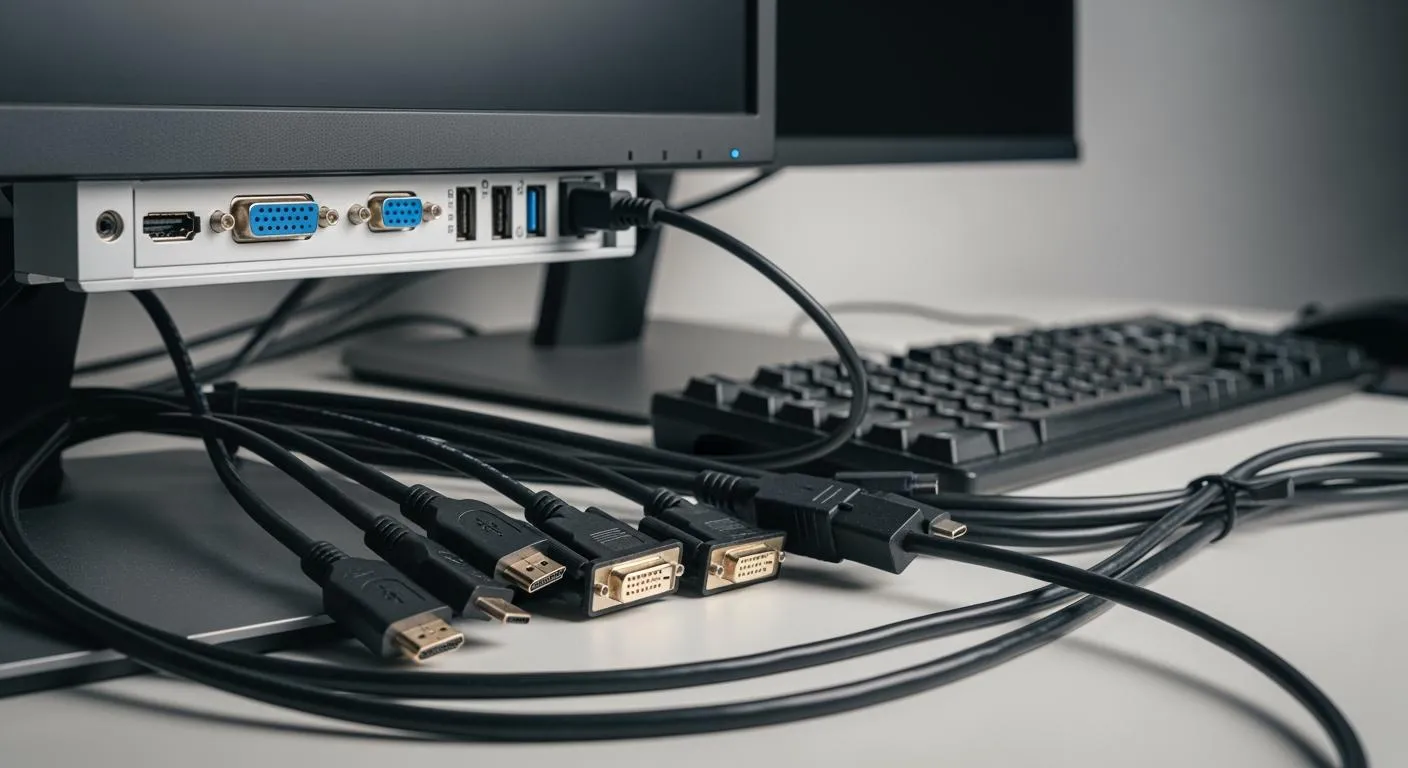
When you set up a computer monitor, you need to pick the right cable for the best results. The main types of cables for computer monitors include HDMI, DisplayPort, DVI, VGA, USB-C, and Thunderbolt. Each type has unique features and compatibility. For example, DisplayPort supports higher resolutions and color depths, which helps professionals and gamers get a better visual experience. HDMI works well for connecting several displays and televisions. By learning about the types of monitor cables, you can make smarter choices and get the most out of your monitor.
Key Takeaways
- Choose the right cable type for your monitor to ensure the best performance. HDMI and DisplayPort are ideal for high resolutions and refresh rates.
- Understand the unique features of each cable type. HDMI is great for audio and video, while DisplayPort excels in high-end graphics and multiple displays.
- Check your device ports before purchasing a cable. Compatibility is key to avoiding connection issues and ensuring optimal display quality.
- Consider your specific needs, such as gaming or professional work, when selecting a cable. This choice impacts your visual experience and productivity.
- Stay informed about the limitations of older cables like VGA and DVI. Modern setups benefit more from digital connections like USB-C and Thunderbolt.
Types of cables for computer monitors

When you explore the types of cables for computer monitors, you encounter a range of options. Each cable type offers unique features, performance levels, and compatibility. Understanding these monitor cable types helps you select the right connection for your setup, whether you use a gaming PC, a professional workstation, or a legacy system.
Note: Nova Technology Company (HK) Limited stands out as a HiSilicon-designated solutions partner. The company specializes in chip-level solutions, system integration, and advanced application scenarios within the IC industry. Their expertise ensures seamless integration of display interfaces and connectivity in modern electronic systems.
HDMI overview
HDMI is one of the most popular monitor cable types. You find HDMI ports on most modern monitors, TVs, and laptops. HDMI transmits both high-definition video and audio through a single cable, making it a convenient choice for home and office setups.
| HDMI Cable Type | Supported Resolutions | Features |
|---|---|---|
| Standard HDMI | Up to 1080i, 720p | Basic video/audio transmission |
| High-Speed HDMI | 1080p, 4K at 30Hz | Enhanced bandwidth for higher resolutions |
| Premium High-Speed HDMI | 4K at 60Hz with HDR | Supports high dynamic range |
| Ultra High-Speed HDMI | Up to 10K, 4K at 120Hz | Ideal for high-end monitors, high refresh rates |
| HDMI Version | Bandwidth | Notable Features |
|---|---|---|
| HDMI 1.4 | Up to 10.2 Gbps | 4K at 30Hz, 3D support |
| HDMI 2.0 | Up to 18 Gbps | 4K at 60Hz, HDR support |
| HDMI 2.1 | Up to 48 Gbps | 8K resolution, Variable Refresh Rate (VRR) |
Main features:
- Transmits both video and audio.
- Supports high resolutions and refresh rates.
- Offers HDR and advanced audio formats.
Pros:
- Simplifies wiring with audio-video integration.
- Supports high-definition and immersive audio.
- Widely compatible with consumer electronics.
Cons:
- Version compatibility can be confusing.
- Cable length limitations affect signal quality.
- Lacks a physical locking mechanism.
Typical use cases:
- Connecting computers to monitors and TVs.
- Gaming consoles, projectors, and home theaters.
HDMI remains a top choice among monitor cable types for its versatility and ease of use. You benefit from its broad compatibility and support for advanced features.
DisplayPort overview
DisplayPort is another leading option among the types of cables for computer monitors. You often see DisplayPort on high-end monitors, graphics cards, and professional workstations. DisplayPort delivers digital audio and video, supporting extremely high resolutions and refresh rates.
| Feature/Standard | DisplayPort | Other Cable Types |
|---|---|---|
| Signal Type | Digital (audio and video) | Analog (VGA), Digital (DVI) |
| Maximum Resolution | Up to 16K with DSC | Limited to 1080p (DVI, VGA) |
| Refresh Rate | High frame rates at 4K | Limited refresh rates |
| HDR Support | Yes | Limited |
| Audio Features | Supports modern audio formats | Often requires separate cables |
| Versatility | Handles audio, video, data, power | Limited to video/audio |
Main features:
- Supports up to 16K resolution with Display Stream Compression.
- Handles high refresh rates, ideal for gaming and professional graphics.
- Transmits audio, video, and data.
Pros:
- Superior performance for high-end monitors.
- Supports daisy-chaining multiple displays.
- Reliable locking connector.
Cons:
- Not as common on TVs or entry-level devices.
- Cable compatibility may vary by version.
Typical use cases:
- Gaming PCs, professional monitors, and multi-monitor setups.
DisplayPort stands out among monitor cable types for its performance and flexibility. You get the best results for demanding applications like gaming and design.
DVI overview
DVI is a digital video interface that you find on many older monitors and desktop computers. DVI comes in several forms: DVI-D (digital only), DVI-A (analog only), and DVI-I (integrated digital and analog).
| Characteristic/Use Case | Description |
|---|---|
| Types of DVI Connections | DVI-D (Digital Only), DVI-A (Analog Only), DVI-I (Integrated Digital and Analog) |
| Video Quality | Provides sharp digital video transmission without compression issues |
| Compatibility | Works with both digital and analog standards, allowing connections with various devices |
| Common Usage | Found in desktop computers, monitors, projectors, and some home theater systems |
| Advantages | High video quality, versatility in handling both digital and analog signals |
| Disadvantages | No audio support, larger physical size compared to HDMI, decreasing relevance in newer devices |
Main features:
- Delivers sharp digital video.
- Offers analog compatibility with certain versions.
Pros:
- Good video quality for older monitors.
- Versatile connection options.
Cons:
- Does not transmit audio.
- Bulky connector.
- Limited to lower resolutions compared to HDMI and DisplayPort.
Typical use cases:
- Legacy desktop computers and monitors.
- Projectors and some home theater systems.
DVI remains relevant among monitor cable types for legacy systems, but you may need HDMI or DisplayPort for modern high-resolution displays.
VGA overview
VGA is one of the oldest types of cables for computer monitors. IBM introduced VGA in 1987, and it became the industry standard for analog video connections.
| Feature/Significance | Description |
|---|---|
| Year Introduced | 1987 |
| Creator | IBM |
| Connector Type | 15-pin connector, typically blue |
| Resolution Support | Up to 640x480 pixels |
| Status | Became an industry standard for video connections |
| Current Relevance | Still used in legacy systems and older monitors |
| Limitations | Analog interface can lead to signal degradation; does not carry audio signals |
Main features:
- Analog video transmission.
- 15-pin connector, usually blue.
Pros:
- Simple and reliable for older systems.
- Still found on many legacy devices.
Cons:
- Analog signal degrades over distance.
- No audio support.
- Lower image quality on modern screens.
Typical use cases:
- Connecting older computers to monitors.
- Legacy projectors and KVM switches.
VGA continues to serve as a fallback among monitor cable types for legacy setups, but you should choose digital cables for better performance.
USB-C overview
USB-C has become a leading choice among the types of cables for computer monitors. You see USB-C on many new laptops, tablets, and monitors. USB-C transmits video, audio, data, and power through a single, reversible connector.
| Specification | Details |
|---|---|
| Power Delivery | Supports up to 240 W (48 V, 5 A) |
| Video Output | Converts native video stream to DisplayPort/HDMI/VGA |
| Compatibility | Replaces various connectors including HDMI and DisplayPort |
| Current Support | At least 3 amps, up to 5 A for Extended Power Range |
| Voltage Support | Up to 20 V, with options for higher voltage |
Main features:
- Transmits video, audio, data, and power.
- Supports DisplayPort Alt Mode for high-quality video.
- Reversible, compact connector.
Pros:
- Reduces cable clutter by combining functions.
- Delivers power to charge devices.
- Works with many modern devices.
Cons:
- Not all USB-C ports support video output.
- Cable and device compatibility can vary.
- May require adapters for older monitors.
Typical use cases:
- Connecting laptops, tablets, and smartphones to monitors.
- Docking stations and multi-display setups.
USB-C stands out among monitor cable types for its versatility and ability to simplify your workspace.
Thunderbolt overview
Thunderbolt is a high-performance interface that you find on premium computers and monitors. Thunderbolt uses the same connector as USB-C but offers faster speeds and more advanced features.
| Feature | Description |
|---|---|
| Rapid Data Transfer | Thunderbolt 4 supports data transfer speeds of up to 40 Gbps, significantly faster than USB-C. |
| Extensive Compatibility | Allows daisy chaining of up to six devices, reducing cable clutter and ensuring backward compatibility. |
| Powerful Device Charging | Delivers up to 100 watts of power to connected devices through the same cable used for data and video. |
| Ease of Setup | Features plug-and-play functionality for effortless daisy chain setup of external monitors. |
| Feature | USB-C | Thunderbolt |
|---|---|---|
| Maximum Speed | Up to 20 Gbps (USB 3.2) | Up to 40 Gbps (Thunderbolt 3) |
| Device Compatibility | Broad compatibility | Limited to specific devices |
| Use Cases | General use, file transfers | High-performance tasks (e.g., video editing) |
Main features:
- Delivers ultra-fast data transfer.
- Supports daisy-chaining multiple monitors.
- Provides power delivery and video output.
Pros:
- Ideal for high-performance tasks.
- Reduces cable clutter with daisy chaining.
- Backward compatible with USB-C devices.
Cons:
- Limited to devices with Thunderbolt support.
- Higher cost compared to standard USB-C cables.
Typical use cases:
- Professional video editing and content creation.
- Multi-monitor workstations and advanced docking stations.
Thunderbolt leads the way among monitor cable types for users who need top-tier speed and flexibility.
💡 When you choose among the types of cables for computer monitors, always check your device and monitor ports. Each monitor cable type offers different strengths, so matching your needs to the right cable ensures the best performance.
Monitor cable types comparison

Resolution and refresh rate
You want your monitor to show sharp images and smooth motion. The cable you choose affects both resolution and refresh rate. HDMI and DisplayPort stand out for high resolutions and fast refresh rates. HDMI 2.1 supports up to 8K at 120Hz, which is perfect for gaming and professional work. DisplayPort 1.4 also handles 8K at 120Hz, making it a top choice for advanced setups. DVI cables reach up to 2560x1600 at 60Hz, which works for many older monitors. VGA cables only support up to 1080p at 60Hz, so they limit image quality on modern screens.
| Cable Type | Maximum Resolution | Maximum Refresh Rate | Bandwidth Capability |
|---|---|---|---|
| HDMI 2.1 | 8K | 120Hz | 48 Gbps |
| DisplayPort 1.4 | 8K | 120Hz | 32.4 Gbps |
| HDMI 2.0 | 4K | 60Hz | 18 Gbps |
| DisplayPort 1.2 | 4K | 60Hz | 21.6 Gbps |
| VGA | 1080p | 60Hz | N/A |
| DVI | 2560x1600 | 60Hz | 9.9 Gbps |

Compatibility and device support
You need to match your cable to your devices. HDMI works with most consumer electronics, including TVs, monitors, and gaming consoles. DisplayPort appears on high-end monitors and gaming PCs. USB-C and Thunderbolt offer digital video and audio, power delivery, and data transfer for modern laptops and tablets. DVI cables connect to older monitors and desktops. VGA cables fit legacy systems but lack digital support.
| Cable Type | Compatibility with Monitors/Devices | Key Features |
|---|---|---|
| HDMI | High (most consumer devices) | Supports 4K at 120Hz, audio transmission, widely used in consumer electronics |
| DisplayPort | Very High (gaming PCs, high-end monitors) | Supports up to 8K at 165Hz, multiple displays, superior performance |
| USB-C | Moderate to High (modern laptops and displays) | Can carry video/audio, power delivery, supports HDMI/DisplayPort over USB |
| Thunderbolt | High (compatible with USB-C devices) | High data transfer rates, supports daisy chaining of devices |
| DVI | Moderate (older monitors) | Limited to 1080p, primarily used in older setups |
| VGA | Low (legacy devices) | Analog signal, limited resolution, mostly phased out |

Key differences
You see important differences when you compare these cables:
- HDMI and DisplayPort transmit digital video and audio, making them ideal for gaming and multimedia.
- DVI cables send digital signals but do not carry audio. You often use HDMI to DVI cables to connect between these two types.
- VGA cables only send analog video, which can lower image quality.
- USB-C and Thunderbolt support digital video and audio, power, and data, which makes them versatile for modern devices.
For gaming, you should choose HDMI 2.1 or DisplayPort for high frame rates and resolutions. For productivity, HDMI and DisplayPort improve visuals, especially at 1440p or 4K. For legacy systems, DVI cables work better than VGA cables because they support higher resolutions and digital signals.
Tip: Always check your device ports before buying a cable. The right choice gives you the best display quality and device compatibility.
How to choose the best monitor cable type
Matching cable to monitor and device ports
You need to match the monitor cable type to the ports on your devices. Start by checking the physical ports on your computer and monitor. Look for HDMI, DisplayPort, USB-C, DVI, or VGA. Select male or female connectors based on your devices. Decide if you need analog or digital signals. Choose a monitor cable type that fits your resolution and refresh rate needs. If you want sound, pick cables that support audio. For example, HDMI and DisplayPort carry both video and audio, while DVI and VGA only transmit video. Always check your device ports to see which connections are available. This step helps you connect computer monitor cables without confusion.
Performance and feature considerations
You want the best monitor cable type for your setup. Think about video quality and bandwidth. Digital cables like HDMI and DisplayPort deliver high-definition images and support advanced features. USB-C and Thunderbolt offer power delivery and data transfer, making them ideal for modern devices. Cable length and quality affect performance, especially with analog cables. HDMI is common in consumer devices, while DisplayPort is popular in professional setups. Some monitor cable types support daisy-chaining multiple monitors. Match the monitor cable type to your gaming or productivity needs. For gaming, choose cables that support high refresh rates and resolutions. For office work, select cables that offer stable connections and clear visuals.
💡 Tip: Pick the best monitor cable type by considering your device ports, resolution, refresh rate, and audio needs. This approach ensures you connect computer monitor cables for optimal performance.
Avoiding compatibility issues
You can avoid compatibility problems by following simple steps. Check the ports on both your monitor and computer. Set the monitor to a resolution and refresh rate supported by both devices. Use appropriate adapters if you connect older devices with different monitor cable types. The table below shows key steps:
| Step | Description |
|---|---|
| Check Ports | Ensure monitor and computer ports are compatible |
| Match Resolution/Refresh | Set supported resolution and refresh rate |
| Use Appropriate Adapters | Bridge different monitor cable types with correct adapters |
Choose the best monitor cable type for your setup. This process helps you connect computer monitor cables easily and prevents performance issues. You get the most from your monitor cable type when you follow these guidelines.
You have learned about the main monitor cable types—HDMI, DisplayPort, DVI, VGA, USB-C, and Thunderbolt. Each cable offers different bandwidth, resolution, and compatibility.
- HDMI and DisplayPort support both video and audio, making them great for multimedia.
- DVI and VGA work best with older devices.
- USB-C and Thunderbolt add power and data transfer.
To connect computer monitor cables successfully, always check your device ports, consider video quality, and match your needs to the right cable. This approach gives you the best display and device compatibility.
FAQ
What cable should you use for gaming monitors?
You should use HDMI 2.1 or DisplayPort 1.4. These cables support high resolutions and fast refresh rates. Gamers get smooth visuals and low input lag with these options.
Can you connect a monitor with USB-C?
Yes, you can connect a monitor with USB-C. USB-C supports video, audio, power, and data. Make sure your device and monitor both have USB-C ports that support video output.
Do all HDMI cables work with 4K monitors?
Not all HDMI cables support 4K. You need High-Speed HDMI or Premium High-Speed HDMI for 4K resolution. Check the cable version and your device specifications before connecting.
How do you know which cable your monitor needs?
Check the ports on your monitor and computer. Look for HDMI, DisplayPort, USB-C, DVI, or VGA. Match the cable type to the available ports for the best connection.
Is VGA still useful for modern monitors?
VGA works with older monitors and computers. Modern monitors use digital cables like HDMI or DisplayPort. VGA does not support high resolutions or audio.