Mini USB Pinout Explained for 2025
You might wonder what a mini USB pinout is. It’s a map that shows you what each pin in a mini USB connector does. This info
You might wonder what a mini USB pinout is. It’s a map that shows you what each pin in a mini USB connector does. This info matters in 2025 because devices keep getting more complex. If you know the function of every pin and the wire color codes, you can fix or connect devices safely. A labeled diagram or table makes things even easier. Understanding these details helps you avoid mistakes like short circuits and keeps your gadgets working, whether they’re brand new or a bit older.
Key Takeaways
- Understanding the mini USB pinout helps you safely connect and fix devices. Knowing what each pin does prevents mistakes like short circuits.
- Always check the wire color codes in USB cables. This knowledge helps you identify which wire is for power and which is for data, making repairs easier.
- Choose high-quality USB cables with certifications. These cables last longer and ensure safe charging and data transfer.
- Handle USB cables with care. Grip the plug, not the wire, to avoid damaging the connection and ensure your cables work properly.
- Stay updated on USB standards. Knowing the differences between mini USB, micro USB, and USB-C helps you choose the right cables for your devices.
Mini USB Pinout
Connector Overview
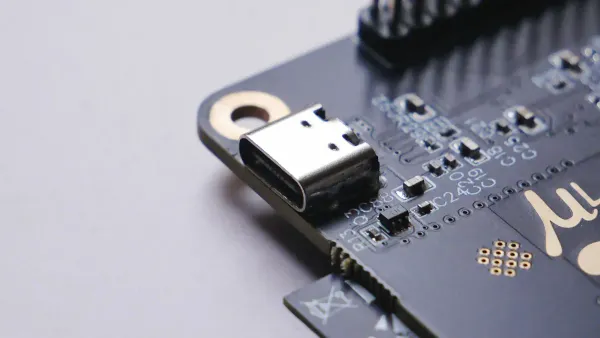
When you look at a mini USB connector, you see a small, rectangular plug. This connector is a bit bigger than a micro USB, but much smaller than the old standard USB ports you might find on older computers. You can spot mini USB connectors on digital cameras, MP3 players, and some game controllers. The mini USB pinout helps you understand how each part of the connector works.
Here’s a quick look at the size of the mini USB plug:
| Characteristic | Measurement |
|---|---|
| Mini-A and Mini-B plug dimensions | Approximately 3 by 7 mm (0.12 by 0.28 in) |
The mini USB connector has six main parts inside: five pins and a shield. The shield wraps around the pins and helps protect the connection from electrical noise. You might not see the shield, but it plays a big role in keeping your data safe.
Tip: If you ever need to check the wiring, you can find detailed USB wiring diagrams in technical libraries. These diagrams show you exactly where each pin sits and what it does.
Pin Numbering
You might wonder how the pins are arranged inside the mini USB connector. Here’s a simple list to help you picture it:
- VBUS (also called Vcc): This pin gives power to your device.
- D-: This pin carries data signals.
- D+: This pin also carries data signals, but in the opposite direction.
- ID: This pin helps devices figure out what kind of connection they have.
- GND: This pin is the ground, which keeps everything balanced.
- Shield: This part connects to ground and protects the other pins.
The mini usb pinout uses these five pins and the shield to make sure your device gets power and can send or receive data. The shield is often tied to ground, which helps prevent interference.
Here’s a table that breaks down what each pin does:
| Pin | Function Description |
|---|---|
| VBUS | Supplies power to the connected device through the USB port. |
| D+ | Differential data line for transmitting digital signals. |
| D- | Differential data line for receiving digital signals. |
| ID | Allows devices to identify each other and determine their roles. |
| GND | Provides a common reference point for the electrical circuit. |
You might notice that the mini USB pinout looks a lot like the micro USB pinout. Both have five pins: VBUS, D-, D+, ID, and GND. The main difference is the size. Mini USB is a bit larger, while micro USB is smaller and more common on newer phones and tablets. Both types use the same pin configuration for power and data.
If you want to learn more about the technical details, many blogs and technical resources offer deep dives into mini USB connectors and their pinouts. These guides can help you with repairs or troubleshooting if you ever run into problems with your cables or devices.
Pin Functions
Power Pins
When you plug in a mini USB cable, the first thing your device looks for is power. The VBUS pin delivers a steady 5 volts, which is just what your device needs for charging. The GND pin acts as the ground, making sure the electrical circuit stays balanced and safe. If you use a five-wire usb cable, you get both power and data transfer in one neat package. Some cables, like a three-wire usb cable, only handle charging and skip the data lines.
You might notice that a four-wire usb cable is common for charging and data. The shielded wires inside help block out electrical noise, so your device charges safely and quickly. If you use the wrong pinout or wire things incorrectly, you can run into problems. Here’s a quick table to show what happens if the wiring goes wrong:
| Pin | Signal | Description |
|---|---|---|
| 1 | VCC | +5VDC (charging and power delivery) |
| 2 | D- | Data- (negative data wire) |
| 3 | D+ | Data+ (positive data wire) |
| X | N/C | Used as an attached device presence indicator |
| 4 | GND | Ground (charging and power delivery) |
⚡ Tip: Always double-check your cable before using it for charging. A bad cable can damage your device or stop charging altogether.
Data Pins
The D+ and D- pins are the real stars when it comes to data transfer. These two pins work together to move information between your device and your computer. The positive data wire (D+) and the negative data wire (D-) form a pair that lets your device send and receive files, music, or photos. If you use a data transfer cable, you can move files at high speeds.
- USB 2.0 lets you transfer data at speeds up to 480 Mbps.
- Most devices use a four-wire usb cable for both charging and data transfer.
- The shielded wires inside the cable keep your data safe from interference.
You might see some cables labeled as data transfer cable. These cables have all four wires connected, so you can charge your device and transfer files at the same time. If you use a three-wire usb cable, you can only charge your device, not transfer data.
For serial communication, the default baud rate is usually 9600 baud. This speed works well for simple devices that don’t need to transfer huge amounts of data.
ID Pin
The ID pin is a small but important part of the mini USB pinout. You might not use it every day, but it plays a big role in device detection and power delivery. The ID pin helps your device figure out if it should act as a host or a peripheral. Here’s how it works:
- The ID pin decides the device’s role in USB On-The-Go (OTG) connections.
- If the ID pin connects to ground, your device becomes the host and can provide charging power.
- If the ID pin stays open, your device acts as a peripheral and does not provide charging power.
- This setup is key for proper device detection and safe power delivery in OTG situations.
📝 Note: The ID pin is what lets your phone act as a host when you plug in a USB flash drive. Without it, your device might not know what to do.
When you use a five-wire usb cable, you get the full range of features: charging, data transfer, and OTG support. If you want the best experience, always pick a cable that matches your needs.
USB Cable Color Codes
Power Wire Colors
You might have noticed that every mini USB cable looks similar on the outside, but inside, the wires have their own colors and jobs. Knowing the usb cable color codes helps you figure out which wire does what, especially when you need to fix or check your cable. Most usb charging cable color codes follow a simple pattern. Here’s a table that shows you the standard colors and their functions:
| Color | Function |
|---|---|
| Red | Positive power (5V DC) |
| Black | Ground wire |
| White | Positive data (D+) |
| Green | Negative data (D-) |
The red wire always carries the power. You use this wire for charging your device. The black wire is the ground wire. It keeps the electrical circuit safe and balanced. If you ever open up a usb charging cable, you’ll see these two wires are usually thicker than the others. That’s because they handle more current.
💡 Tip: If you see a broken red or black wire, your device won’t charge. You should replace the damaged section or the whole plug to keep things working.
Data Wire Colors
The usb cable color codes also help you spot the data wires. The white wire is for positive data (D+), and the green wire is for negative data (D-). These wires are thinner because they only carry information, not power. When you transfer files or sync your device, these wires do all the work. Most USB cables have four wires: red, black, white, and green. If you know the usb wire color code, you can quickly find the problem when your cable stops working.
- The thick red wire shows you where the power flows.
- The black ground wire keeps everything safe.
- The white and green wires handle all the data.
- If you see damage, you can repair just the broken wire or swap out the whole cable.
You don’t need to be an expert to use usb cable color codes for troubleshooting. Just match the colors to their jobs, and you’ll fix most problems in no time.
Comparison to Other USB Types
Mini vs. Micro USB
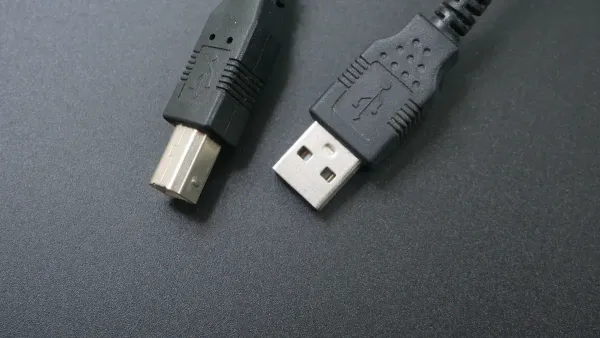
You might wonder how mini USB and micro USB compare. Both connectors look similar, but you will notice some key differences when you look closer. Mini USB came out in 2005. Micro USB followed in 2007. You can find both on older gadgets, but micro USB is smaller and more common on phones and tablets from the last decade.
Here’s a table to help you see the differences and similarities:
| Feature | Mini USB | Micro USB |
|---|---|---|
| Year Introduced | 2005 | 2007 |
| Shape | Anvil-like | Smaller, more compact |
| Number of Pins | 5 | 5 |
| ID Pin Function | Limited functionality | Functions as A and B Type |
Both mini USB and micro USB have five pins. The pinout is almost the same. You get VBUS for power, D- and D+ for data, an ID pin, and a ground pin. The ID pin in micro USB does a bit more. It helps your device switch between host and peripheral roles. Mini USB’s ID pin is simpler.
💡 Tip: If you need to replace a cable, check the connector shape. Mini USB is bigger and less common now. Micro USB fits smaller devices.
Mini vs. Type-C
Now, let’s talk about mini USB and usb-c. Usb-c is everywhere in 2025. You see it on laptops, tablets, and even headphones. Usb-c is much faster and more powerful than mini USB. It can handle more data and charge your devices quicker.
Check out this table for a quick comparison:
| Spec | USB-C | Mini USB |
|---|---|---|
| Speed and data transfer capabilities | supports data transfer speeds of up to 10 Gbps and can deliver up to 100W of power, making it suitable for a wide range of devices including laptops, smartphones, and tablets. | maximum data transfer speed of 480 Mbps and can deliver up to 5V of power. People mainly use it for connecting peripherals such as digital cameras, MP3 players, and older smartphones. |
| Charging efficiency and power delivery | supports more power delivery profiles and can deliver more power | older and has slower charging speeds and lower power delivery capabilities |
Usb-c stands out because you can plug it in either way. You do not have to worry about which side is up. Usb-c also supports more power delivery profiles. You can charge big devices like laptops with usb-c. Mini USB cannot do that. It only supports up to 5V and much slower data speeds.
If you want the best speed and charging, usb-c is the way to go. Mini USB still works for older gadgets, but you will see usb-c on almost everything new.
🚀 Note: Usb-c is backward compatible with older usb standards if you use the right adapter or cable. You can still connect your old devices, but you will not get the same speed or power.
Troubleshooting
Common Issues
You might run into a few problems with your mini usb cables, especially if you use them every day. Some of the most common issues include:
- The connection only works if you hold the usb cable at a certain angle.
- Charging stops or starts randomly, even when the usb cable looks fine.
- Data transfer fails, or your device does not show up on your computer.
- These problems can happen with many devices, not just one type. You may notice that both charging and data transfer get worse over time. Sometimes, the usb cable just wears out, or the wires inside break.
⚠️ Tip: If your device charges slowly or keeps disconnecting, the usb cable might be the problem, not the device itself.
Diagnosing Pin Problems
You can check for faulty pins or wires in your mini usb connector with a few simple steps. First, plug the usb cable between two devices. Gently wiggle the cable and see if the connection drops. If it does, you probably have a broken wire or a loose pin inside the usb plug.
You can also use a multimeter to check each wire for continuity. Place the probes on both ends of the usb cable and test each wire, including the ground. If you find a break, you know which wire needs fixing.
Repair Tips
If you want to repair your mini usb cable, make sure you stay safe. Always use protective eyewear and keep your workspace well-ventilated. Avoid touching hot solder directly. Here’s a list of tools that can help you fix your usb cable:
- Use a Stanley knife to carefully cut open the usb plug.
- Grab a soldering iron to reconnect any broken wires.
- Clean the connector with a de-soldering wick.
- Tighten the cable grip with pliers.
- Secure the outer casing with a hot glue gun.
🛠️ Note: If you see a broken wire or a loose ground connection, replace or repair it right away. A good usb cable keeps your devices safe and working.
Practical Tips
Safe Usage
You want your usb cables to last, right? Treat them with care every time you plug or unplug a device. Always grip the plug, not the wire, when you disconnect your usb cable. Yanking the wire can break the connection inside and cause problems with charging or data transfer. Avoid sharp bends and tangles. Coil your usb wire loosely and use organizers to keep things neat. If you notice fraying near the ends, attach flexible sleeves or cable protectors. Store your usb cables in a cool, dry place, away from heat and moisture. Clean the connectors with a soft brush or compressed air to keep the usb pins free of dust. Replace any usb wire that looks damaged. High-quality cables from trusted brands last longer and keep your devices safe. If you see a broken ground wire, fix it right away to avoid short circuits.
💡 Tip: Regular cleaning and gentle handling help your usb cables work better and last longer.
Choosing Cables
Picking the right usb cable makes a big difference. Look for USB-IF certification on the packaging. This means the cable meets strict standards for performance and safety. Check the thickness of the wire. Thicker wires handle more power and transfer data faster. Premium cables often have braided exteriors and reinforced connectors. These features protect the wire from breaking near the plug. Lower gauge numbers mean thicker conductors, which are better for charging. Safety certifications like UL listing show the cable is safe for everyday use.
| Criteria | Description |
|---|---|
| Certification | USB-IF certified for quality and compatibility |
| Cable Thickness | Thicker wire for better power delivery |
| Construction Quality | Braided cables and reinforcements for durability |
| Connector Build Quality | Reinforced stress relief near connectors |
| Wire Gauge | Lower gauge numbers for efficient current handling |
| Safety Certifications | UL listing for consumer safety |
Future-Proofing
You want your devices to stay connected as technology changes. Choose usb cables that support both charging and data transfer. Look for cables with all four wires connected, including the ground. This lets you use your cable for more than just charging. If you upgrade your devices, pick cables with adapters for newer usb types. Store extra usb cables in a safe spot so you always have a backup. When you buy new cables, check if they work with both old and new devices. This way, you keep your gadgets ready for anything.
🚀 Tip: Future-proof your setup by choosing usb cables with strong wires and universal compatibility.
You’ve learned how knowing the mini USB pinout and wire color codes helps you fix problems and keep your devices safe in 2025. When you compare mini USB to other usb types, you see big differences:
| Feature | Mini USB | Micro USB |
|---|---|---|
| Durability | Fragile, 5,000 cycles | Improved durability |
| Compatibility | Not compatible with On The Go mode | Compatible with most mobile devices |
| Status | Deprecated | Widely used |
Mini USB is fragile and doesn’t last as long as micro usb. You might find it hard to get new mini usb cables. Micro usb works with more devices and lasts longer. If you want to stay updated on usb standards, check the USB 2.0 Specification and USB Connector Guides. These resources help you understand changes and keep your usb devices working. Use these tips to make smart choices and keep your usb connections strong.
- Always match your usb cable to your device.
- Check wire colors before repairs.
- Look for updates on usb standards.
Staying informed helps you avoid mistakes and keeps your usb gadgets running smoothly.
FAQ
What devices still use mini USB in 2025?
You might spot mini USB on older cameras, MP3 players, and some game controllers. Many new devices now use USB-C, but you can still find mini USB on gadgets that haven’t switched over yet.
Can you use a micro USB cable in a mini USB port?
No, you can’t. The shapes are different, so a micro USB cable won’t fit in a mini USB port. If you need to connect, you’ll want the right USB cable for your device.
How do you know if your USB cable supports data transfer?
Check the packaging or look for all four wires inside the USB cable. If you see only two wires, it’s probably just for charging. A real USB data cable lets you move files and charge your device.
What happens if you connect the USB wires incorrectly?
If you mix up the USB wires, your device might not charge or transfer data. Sometimes, you could even damage your gadget. Always match the USB wire colors to the right pins before you try any repairs.