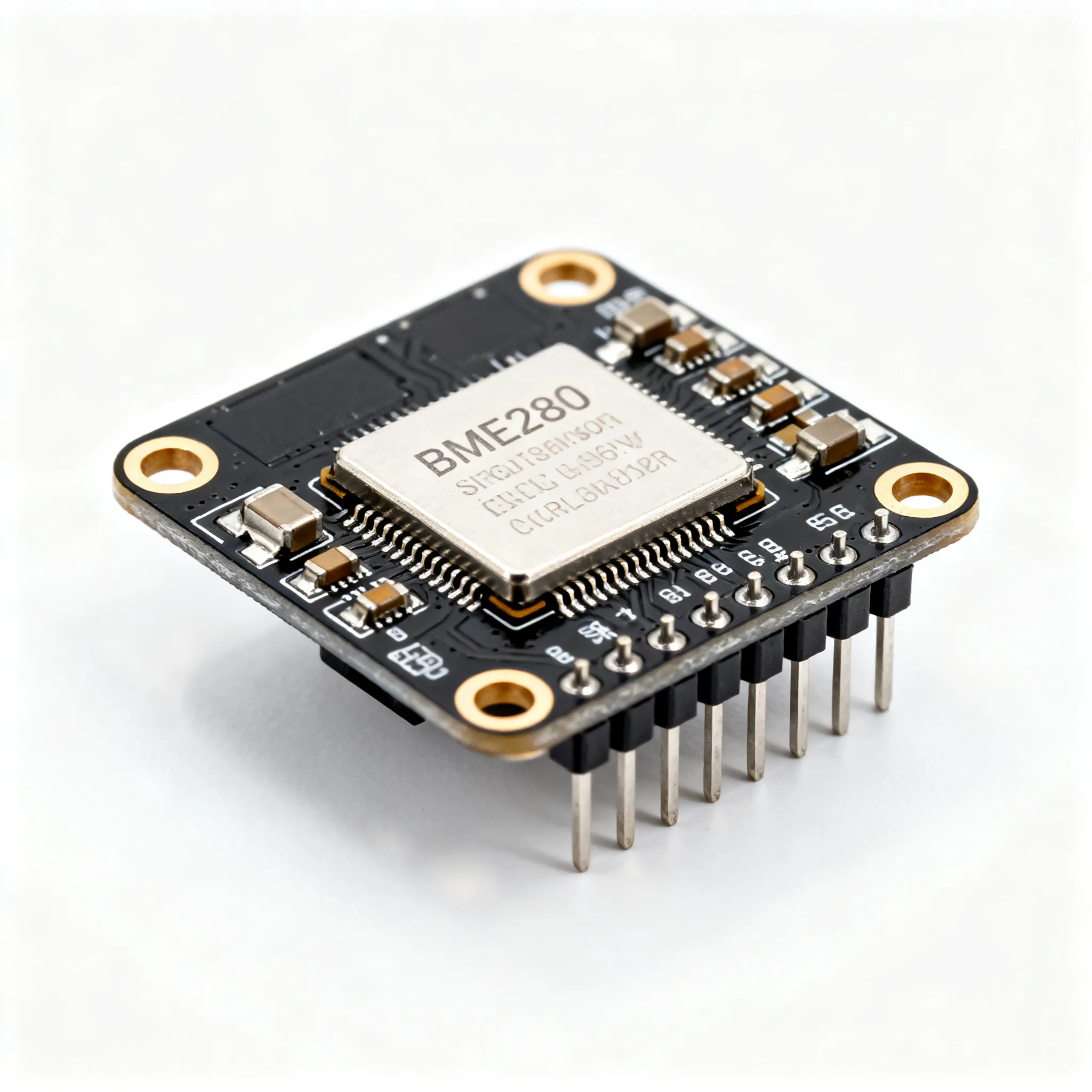
Unlock the Power of HiSilicon AI SoCs with Open Tools
You can quickly develop for HiSilicon AI SoCs. You will use open-standard tools like the Ascend CANN SDK. This powerful SDK

You can quickly develop for HiSilicon AI SoCs. You will use open-standard tools like the Ascend CANN SDK. This powerful SDK supports your machine learning projects. Your path to creating AI applications is simple.
- Set up your development environment on the board.
- Convert a machine learning model from an open framework.
- Deploy and run your AI model on the edge board.
This guide gives you a hands-on way to run your first AI application. You can take a standard model and see it perform on your board for edge computing. The ecosystem delivers excellent performance for your edge learning and computing tasks.
Achieve Top-Tier AI Performance 🚀
The Ascend CANN framework enables impressive efficiency for deep learning at the edge.
Metric Value (per NPU) Prefill Throughput 6,688 tokens/s Decode Throughput 1,943 tokens/s Sustained Decode 538 tokens/s
This learning journey moves your AI concepts to real-world edge computing.
Key Takeaways
- You can build AI applications on HiSilicon AI SoCs using open tools like the Ascend CANN SDK.
- The Ascend CANN SDK has two main tools: ATC converts models, and AscendCL runs them on the AI hardware.
- You can use popular AI frameworks like TensorFlow and PyTorch. Convert your models to ONNX for the best results.
- Set up your development environment by installing the CANN toolkit. Then, verify the installation to ensure it works.
- To run your first AI app, convert a model like ResNet-50 with ATC. Then, use AscendCL to deploy and run it on your board.
EXPLORING THE AI ECOSYSTEM

You will use the Ascend CANN (Compute Architecture for Neural Networks) SDK as the core of the modern AI ecosystem. This powerful SDK gives you the tools for your machine learning projects. The ecosystem supports your journey from model development to deployment on edge devices. This AI ecosystem is designed for high-performance edge computing.
TOOLS FOR HISILICON AI SOCS
Your main tool is the Ascend CANN SDK. It replaces the older HUAWEI HiAI DDK. This SDK contains two key components for your artificial intelligence tasks.
-
Ascend Tensor Compiler (ATC): You use this tool to convert your neural networks models. It takes models from open AI frameworks and prepares them for the board. ATC also optimizes your model for better performance and lower memory use by supporting half-precision computing. It improves your model with features like:
- Operator scheduling optimization
- Memory optimization
- Digital Vision Pre-Processing (DVPP) for faster image processing
-
Ascend Computing Language (AscendCL): You use this API to run your model on the AI hardware. The Python library, pyACL, lets you write code to manage the board, control memory, and execute your machine learning model. This is how your application communicates with the Hisilicon AI SoCs.
FRAMEWORK INTEGRATION
You can start with the deep learning framework you already know. The Ascend platform supports popular AI frameworks, making your transition to edge computing smooth. You can easily integrate your existing machine learning workflows.
Tip: For best results, you should export your models to the ONNX format. You can use tools like
tf2onnxto convert your TensorFlow models before using the ATC.
The CANN SDK maintains compatibility with specific framework versions to ensure stability. For example, here are some supported versions for PyTorch:
| Framework | Version | CANN Version |
|---|---|---|
| PyTorch | 2.1.0 | 7.0.1 |
| PyTorch | 1.11.0 | 7.0.1 |
COMMUNITY PROJECTS
Beyond the official SDK, a strong community builds open-source tools. The OpenIPC/openhisilicon project is a great example. It is a community-driven SDK for firmware and low-level development on various systems. This project gives you more control over your board with its MIT/GPL licensing. It supports a wide range of vision processing chips, including:
- hi3516ev300
- hi3516dv300
- hi3559a
This community effort provides another path for your AI learning and development on edge devices.
ENVIRONMENT SETUP
You are now ready to prepare your development environment. This setup is the foundation for all your future AI projects on the board. You will install the necessary software and confirm that your hardware is ready for machine learning tasks.
HARDWARE AND SOFTWARE
Your primary piece of hardware is the HiSilicon AI SoCs development board. You also need a host computer running a compatible Linux distribution, like Ubuntu. Before you begin, make sure your board is powered on and connected to your network. Proper setup of these systems prevents common issues later.
Watch for These Common Setup Errors ⚠️
During the initial setup of your edge devices, you might encounter script or driver errors. Paying close attention to file paths and permissions can help you avoid them.
sh: can't open './pinmux.sh': No such file or directorysh: can't open 'clkcfg.sh': No such file or directoryinsmod: can't insert 'hi_osal.ko': No such file or directoryNo network connection on Hi3516AV200
INSTALLING THE CANN TOOLKIT
You will install the Ascend CANN SDK to enable AI processing on your board. This process involves downloading the correct packages and running the installers.
- Download Packages: Get the driver, firmware, and toolkit packages from the official Ascend community.
- Create User: Set up a dedicated user group for running Ascend applications.
sudo groupadd -g HwHiAiUser sudo useradd -g HwHiAiUser -d /home/HwHiAiUser -m HwHiAiUser - Install Driver & Firmware: Grant execute permissions to the files and run the installers.
sudo chmod +x *.run sudo ./Ascend-hdk-xxx-npu-driver_*.run --full sudo ./Ascend-hdk-xxx-npu-firmware_*.run --full - Install Toolkit: Finally, run the toolkit installer to complete the SDK setup.
./Ascend-cann-toolkit_*.run --install
| Variable | Description |
|---|---|
ASCEND_HOME_PATH | Sets the home path for the CANN toolkit. |
SOC_VERSION | Specifies the version of your Ascend chip. |
MAX_JOBS | Defines the number of CPU cores for compilation. |
VERIFYING THE INSTALLATION
After installation, you should verify that everything works. A successful installation will display a message like xxx install success. You can also run a command to check the status of the AI hardware. This step confirms that your machine learning environment is ready for edge computing and deep learning.
Check NPU Status ✅
You can run the
npu-smi infocommand to get detailed information about your NPU. A successful output shows the chip isOKand ready for AI processing and computing.$ npu-smi info +-----------------------------------------------------------------+ | npu-smi 23.0.1 Version: 23.0.1 | +---------------------------+---------------+---------------------+ | NPU Name | Health | Power(W) Temp(C) | | Chip | Bus-Id | AICore(%) | +===========================+===============+=====================+ | 4 910B3 | OK | 93.6 40 | | 0 | 0000:01:00.0 | 0 | +===========================+===============+=====================+
This confirms your learning journey into AI on the edge can begin.
YOUR FIRST AI APPLICATION
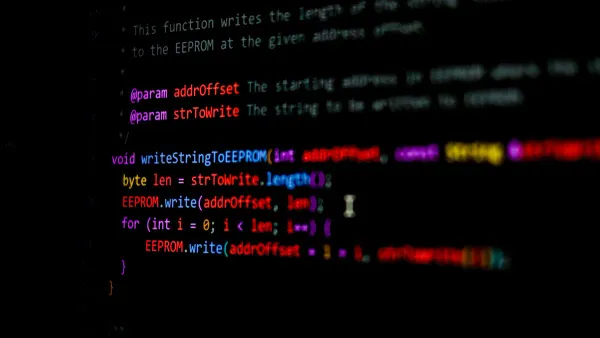
You are ready to build your first AI application. This process takes a standard machine learning model and runs it on your development board. You will see how the software and hardware work together for powerful edge computing. This project will focus on a simple computer vision task.
PREPARING AN OPEN MODEL
Your first step is to choose a pre-trained model. You can find many models in open-source libraries like the ONNX Model Zoo. For this guide, you will use ResNet-50, a popular model for image recognition. It provides a great starting point for your learning journey.
Your model needs input data in a specific format. ResNet-50 expects images to be a certain size and pre-processed. Before you feed an image to the neural network, you must resize it to the model's input shape of 224x224 pixels with 3 color channels. You also need to normalize the pixel values. This preparation ensures the model can understand the image data correctly.
You can easily load a pre-trained ResNet-50 model using a deep learning framework like TensorFlow. The following code shows how to prepare the model for your computer vision task.
import tensorflow as tf

img_height = 224
img_width = 224

pretrained_model = tf.keras.applications.ResNet50(include_top=True,
    input_shape=(img_height, img_width, 3),
    weights='imagenet')
While ResNet-50 is a good choice, the AI ecosystem supports other models for various vision and recognition tasks. You could also start with these alternatives:
- MobileNet: An efficient model designed for mobile and embedded vision devices.
- SqueezeNet: A small model that delivers good accuracy with fewer resources.
- VGG: A powerful model for more complex image classification challenges.
You can also explore models for other artificial intelligence domains, such as speech recognition, to expand your skills.
MODEL CONVERSION WITH ATC
Your HiSilicon AI SoCs cannot run a TensorFlow or ONNX model directly. You must first convert it into a format the board understands. You will use the Ascend Tensor Compiler (ATC) tool from the SDK for this conversion. This tool optimizes your model for the AI hardware, enabling high-performance AI inference acceleration.
The ATC command takes your original model and outputs an offline model (.om) file. This file is ready for deployment on your edge systems.
Convert Your Model with This Command ⚙️
Run the following command in your terminal. Make sure you have already exported your ResNet-50 model to the ONNX format.
atc --model=./resnet50.onnx \
    --framework=5 \
    --output=./resnet50 \
    --input_shape="actual_input_1:1,3,224,224" \
    --soc_version=Ascend310B4
Let's review the key arguments in this command:
| Argument | Description |
|---|---|
--model | Specifies the path to your input model file (e.g., .onnx). |
--framework | Defines the original framework. 5 stands for ONNX. |
--output | Sets the path and name for the output .om file without the extension. |
--input_shape | Tells the compiler the exact input dimensions for your model. |
--soc_version | Specifies the target Ascend chip on your board. |
THE ASCEND COMPUTING LANGUAGE
You will use the Ascend Computing Language (AscendCL) to interact with your converted model. AscendCL is an API that lets your applications communicate with the Ascend AI processor. For Python developers, the SDK provides a library called pyACL. This API gives you the functions to manage the board, load your model, and execute the machine learning inference.
The API includes tools for memory management. You can use functions like AllocTensor to allocate memory for your input and output data directly on the device. This control helps optimize performance by managing how memory is used during data processing. AscendCL also provides functions for both synchronous and asynchronous execution, giving you flexibility in how you design your AI applications.
Here is a simplified Python snippet using pyACL to show the core logic. This code demonstrates loading a model and preparing for inference.
import acl

# 1. Initialize AscendCL
ret = acl.init()

# 2. Allocate resources (device, context, stream)
device_id = 0
ret = acl.rt.set_device(device_id)
context, ret = acl.rt.create_context(device_id)
stream, ret = acl.rt.create_stream()

# 3. Load the .om model
model_path = "./resnet50.om"
model_id, ret = acl.mdl.load_from_file(model_path)

# ... Code to prepare input data, execute inference, and process output ...

# 4. Unload model and release resources
ret = acl.mdl.unload(model_id)
ret = acl.rt.destroy_stream(stream)
ret = acl.rt.destroy_context(context)
ret = acl.rt.reset_device(device_id)
ret = acl.finalize()
DEPLOY AND EXECUTE
The final step is to deploy and run your code on the edge board. You will transfer your Python script and the converted .om model to the device. When you execute the script, it will perform the full machine learning workflow. The AscendCL API will load the model, your code will prepare and feed it an image, and the AI hardware will perform the computing.
The model's output is a raw tensor of numbers. This tensor represents the probabilities for each possible class. Your code must perform post-processing on this output to get a human-readable result. You can apply a Softmax function to these numbers to get final probabilities. The highest probability corresponds to the predicted class for the input image. This final step turns the raw data from your deep learning model into a meaningful answer for your computer vision application. This completes your first AI project, from model selection to on-device inference and result processing.
You can now build powerful AI applications for HiSilicon AI SoCs. Your fastest path uses the Ascend CANN SDK with open machine learning frameworks. This approach simplifies AI development for edge devices. Your future projects can follow a core pattern for success.
Your AI Workflow on the Board 🗺️
- Set up the CANN SDK on your board.
- Convert your model with the ATC tool.
- Deploy your code with the AscendCL API for on-device processing.
This learning journey prepares you for advanced edge computing. You can expand your machine learning skills and explore new AI processing possibilities on your board. The official SDK and community resources support your continued learning.
- You can find the complete Ascend CANN documentation for deep learning.
- The Ascend Community GitHub offers projects and tools for edge computing.
FAQ
What if my model is not in ONNX format?
You can convert your model to ONNX first. Most ai frameworks, like TensorFlow and PyTorch, provide tools to export models. This extra step prepares your model for the ATC tool. It is a standard practice in many ai development workflows.
Can I use these tools for projects other than computer vision?
Yes, you can. The Ascend CANN toolkit is not limited to vision tasks. You can build many types of ai applications. This includes projects in speech recognition and natural language processing. The tools support a wide range of ai models.
Where can I find sample AI projects to get started?
Explore Sample Projects 🧑💻
You can find many example projects in the Ascend community on GitHub. These samples cover various ai tasks and provide complete code. They are a great resource for learning how to build your own applications.
Do I need a specific Linux version for the host computer?
Yes, you need a compatible Linux distribution. The CANN toolkit documentation lists the supported operating systems and versions. You should check the official guide to prevent installation issues. This ensures your ai development environment is stable.