What is the difference between USB A and USB C explained simply
You often see usb ports on devices like computers, smartphones, and integrated circuits. So, what is the difference between
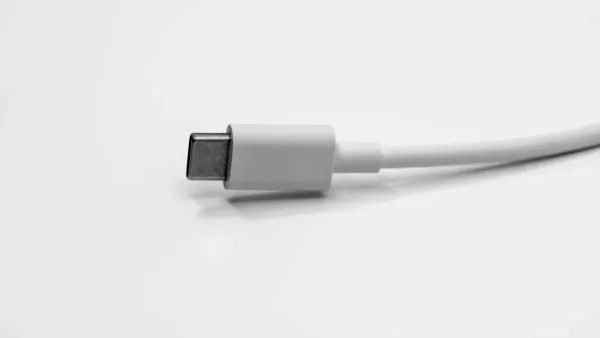
You often see usb ports on devices like computers, smartphones, and integrated circuits. So, what is the difference between usb a and usb c? Usb a uses a larger, rectangular shape and fits only one way, while usb c is smaller, oval, and works both ways. Usb c can transfer data faster, charge devices with more power, and support high-resolution displays.
Knowing this helps you pick the right cable for your device and ensures better compatibility and user experience.
- Usb c is quickly becoming the standard for modern electronics.
- Usb c can handle data, charging, and video output all in one connection.
- Usb a remains common in older devices and some electronic components.
Key Takeaways
- USB-C is smaller and can be plugged in either way, making it easier to use than USB-A, which only fits one way.
- USB-C supports faster data transfer speeds, reaching up to 40 Gbps, while USB-A maxes out at 5 Gbps.
- USB-C can deliver much more power, up to 240W, allowing it to charge larger devices quickly compared to USB-A's maximum of 12W.
- USB-C is becoming the standard for modern devices, while USB-A is still common in older electronics.
- Using USB-C helps future-proof your projects, ensuring compatibility with new technology and reducing frustration.
Physical Differences: USB-A vs USB-C
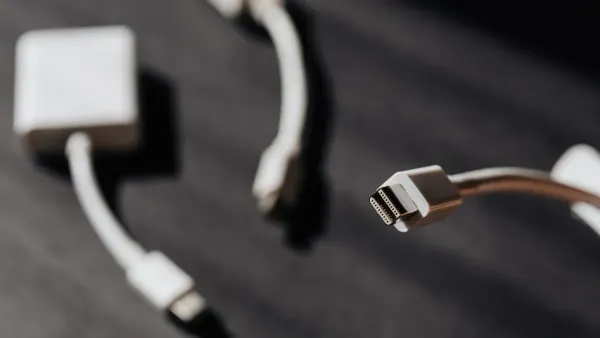
When you look at usb connectors on electronic components or integrated circuits, you notice clear physical differences between usb-a and usb-c. These differences affect how you use them in your devices and how they fit into your daily life.
USB-A Shape
You find usb-a connectors on many older computers, printers, and other electronic components. The usb-a port uses a large, rectangular shape. You see a flat, solid connector with a clear top and bottom. When you try to plug in a usb-a cable, you must align it the right way. If you try to insert it upside down, it will not fit. This design means you often need to flip the connector to find the correct orientation.
USB-C Shape
Usb-c connectors look very different from usb-a. You see a smaller, oval shape that fits into modern devices, including smartphones, tablets, and new integrated circuits. Usb-c does not have a clear top or bottom. The connector is symmetrical, so you can insert it either way. This makes usb-c much easier to use, especially when you cannot see the port clearly or when you work with small electronic components.
Reversible Design
One of the biggest improvements with usb-c is the reversible connector. You do not need to worry about which side is up. Usb-c lets you plug in the cable from either direction, which saves time and reduces frustration. This feature helps a lot when you connect devices in tight spaces or low-light conditions, such as behind a computer or inside an electronic component.
You can see the main differences in orientation and usability between usb-a and usb-c:
- Usb-a connectors have a distinct top and bottom, so you can only plug them in one way.
- Usb-c connectors are symmetrical, so you can insert them in either orientation.
- Usb-c makes connections easier in awkward positions and low-light situations.
Here is a quick comparison to help you understand how the reversible design changes your experience:
| Feature | USB-A | USB-C |
|---|---|---|
| Orientation | Requires specific alignment | Reversible, any orientation |
| Usability in low light | Difficult | Easy |
| Connection in awkward positions | Challenging | Convenient |
When you work with integrated circuits or electronic components, these physical differences can make a big impact. Usb-c gives you more flexibility and less hassle, while usb-a remains common in many older devices. Knowing these differences helps you choose the right usb connector for your needs.
Device Compatibility
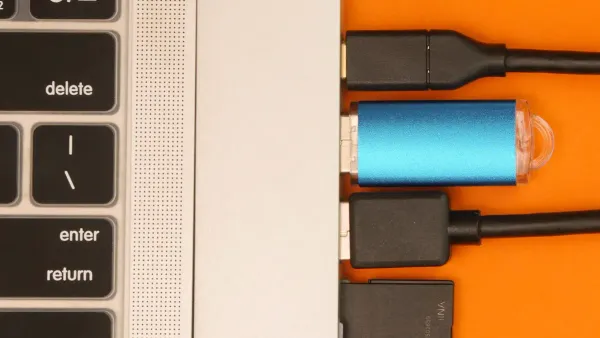
When you work with electronic components and integrated circuits, you often see usb ports on many devices. Understanding how usb-a and usb-c connectors fit into your devices helps you avoid problems and makes your work easier.
USB-A Devices
You find usb-a connectors on many older and current devices. These connectors appear on electronic components that need a stable and familiar connection. You see usb-a ports on:
- Computers (desktops, laptops, netbooks, tablets)
- Gaming consoles (PlayStation, Xbox, Wii)
- Home audio/video receivers
- Smart televisions
- DVRs
- Streaming players (Roku)
- DVD and Blu-ray players
- USB peripherals (keyboards, mice, joysticks)
These devices use usb-a because it has been the standard for many years. You rely on usb-a for connecting integrated circuits and electronic components that need a simple, sturdy connection.
USB-C Devices
Usb-c connectors now appear on many modern devices. You see usb-c ports on electronic components that need faster data transfer and more power. Usb-c is common on:
- Smartphones
- Laptops
- Tablets
- Hard disk drives
- USB hubs
- Other peripherals
Usb-c gives you more options for connecting integrated circuits and electronic components. You get better speed and power delivery with usb-c, which helps you work with new devices and advanced features.
Adapters and Cables
Sometimes, you need to connect a usb-a device to a usb-c device. Adapters and cables help you solve compatibility differences between old and new electronic components. You use these tools to link devices with different usb ports. Here is a table that shows how adapters and cables work:
| Feature | Description |
|---|---|
| Compatibility | Connects usb-a devices (laptops, tablets) to usb-c devices (cellphones, printers, external hard drives) |
| Communication Support | Designed for usb 2.0 communication and features |
| Backward Compatibility | Compatible with usb 1.1 devices |
| Color Coding | Color coded white and labeled for usb 2.0 feature support |
Tip: Always check your device ports before buying cables or adapters. This helps you avoid connection problems and ensures your electronic components work together.
You see that usb-a and usb-c connectors serve different devices and needs. Adapters and cables help you bridge the gap and keep your integrated circuits and electronic components working smoothly.
Speed and Data Transfer
When you work with electronic components and integrated circuits, you need to know how fast your usb connections can move data. The speed of charging and data transfer affects how quickly you can send files, update firmware, or power devices. Let’s look at the differences between usb-a and usb-c in terms of performance and speed differences.
USB-A Speed
Usb-a connectors have been around for many years. You find them on many older devices and electronic components. The speed of usb-a depends on the version you use. Here is a table that shows the maximum data transfer speeds for common usb-a standards:
| USB Standard | Maximum Data Transfer Speed |
|---|---|
| USB 2.0 | 480 Mbps (60 MB/s) |
| USB 3.0 | 5 Gbps (625 MB/s) |
- Usb-a with USB 2.0 supports up to 480 Mbps.
- Usb-a with USB 3.0 can reach up to 5 Gbps.
These speeds work well for basic charging and data transfer tasks, such as connecting a keyboard or mouse to an integrated circuit.
USB-C Speed
Usb-c connectors bring much faster speeds to your electronic components. You see usb-c on new devices that need high-speed charging and data transfer. Here are some common usb-c standards and their speeds:
- USB 3.0: 5 Gb/s
- USB 3.1: 10 Gb/s
- USB 3.2: 20 Gb/s
- Thunderbolt 3: 40 Gb/s
Usb-c lets you move large files quickly, stream high-quality video, and support advanced features in integrated circuits.
Real-World Impact
You notice the difference in charging and data transfer when you use usb-a and usb-c in real situations. For example, if you transfer a 10GB video file:
| Scenario | USB-C Native | USB-A to USB-C |
|---|---|---|
| 10GB Video Transfer | 45–60 sec | 120–180 sec |
| 4K External Display | Stable 60Hz | Limited 30Hz |
| Fast Charging (65W) | Supported | Not Supported |
With usb-c, you finish tasks faster and get better results from your electronic components. Usb-c supports fast charging and high-speed data, while usb-a works best for simple connections. When you choose between usb-a and usb-c, think about the charging and data transfer needs of your integrated circuits and devices.
Power Delivery
USB-A Charging
You often use usb-a connectors for charging electronic components and integrated circuits. Usb-a has been the standard for many years. It provides a steady and reliable power source for devices like microcontrollers, sensors, and small gadgets. The amount of power usb-a can deliver depends on the version and the device. Here is a table that shows the maximum power output for different usb-a versions:
| USB Version | Voltage | Maximum Current | Maximum Power Output |
|---|---|---|---|
| USB 1.0/2.0 | 5V | 0.5A | 2.5W |
| USB 3.0 | 5V | 0.9A | 4.5W |
| USB 3.0 (dedicated charging) | 5V | 1.5A | 7.5W |
| Standard | 5V | 1.5A | 7.5W |
| Non-standard | 5V | Up to 2.4A | Up to 12W |
Most usb-a ports on computers and power adapters provide between 2.5W and 7.5W. Some non-standard ports can reach up to 12W. This power is enough for many small electronic components, but it may not charge larger devices quickly.
USB-C Charging
Usb-c connectors bring a big change to charging for integrated circuits and electronic components. Usb-c supports much higher power levels. You can use usb-c to charge not only small devices but also laptops and even some power-hungry equipment. Usb-c with Power Delivery (PD) can provide:
- Up to 240W of power with the latest USB PD 3.1 standard.
- New voltage options like 28V, 36V, and 48V.
- Power levels of 140W, 180W, and 240W for demanding devices.
With usb-c, you can power advanced integrated circuits, large displays, and even some tools used in electronics labs. Usb-c makes it easier to design and use devices that need more energy.
Fast Charging
Fast charging has become important for both everyday gadgets and specialized electronic components. Usb-a supports fast charging up to 18W, but usb-c can deliver much more. Here is a quick comparison:
| Connector Type | Power Delivery | Charging Speed |
|---|---|---|
| USB-A | Up to 18W | Decent |
| USB-C | Up to 100W | Significantly faster |
- Usb-a can reach up to 12W or 18W with fast charging, which works well for phones and small devices.
- Usb-c can deliver up to 100W, letting you charge devices at least 70% faster than usb-a.
- Usb-c with advanced Power Delivery can charge large devices from 0 to 50% in about 30 to 45 minutes. Many smartphones can recharge fully in under an hour.
Tip: If you work with integrated circuits or electronic components that need quick power, choose usb-c for the fastest and most flexible charging.
Ease of Use
Plugging In
When you work with electronic components or integrated circuits, plugging in a usb connector should be quick and easy. You often face challenges with usb-a because it only fits one way. If you try to insert it upside down, it will not connect. This can slow you down, especially when you need to connect devices in tight spaces or when you cannot see the port clearly. Usb-c changes this experience. You can plug it in from either direction, which means you make fewer mistakes. The reversible design helps you save time and avoid frustration.
Here is a table that shows how plugging in compares:
| Feature | USB-A | USB-C |
|---|---|---|
| Connector Orientation | One specific orientation | Reversible, any orientation |
| User Error Rate | Higher due to incorrect plugging | Lower due to reversible design |
| Design | Rectangular shape | Oval shape, smaller form factor |
Durability
Durability matters when you use usb connectors with electronic components and integrated circuits. You want a connector that lasts through many uses. Usb-a connectors usually last for about 1,500 insertion cycles. Usb-c connectors last much longer, up to 10,000 cycles. This means you can connect and disconnect usb-c devices many more times before the connector wears out. If you work in a lab or use your devices often, usb-c gives you better long-term reliability.
| Connector Type | Insertion Cycles |
|---|---|
| USB-A | 1,500 |
| USB-C | 10,000 |
User Experience
You notice a big difference in user experience when you switch from usb-a to usb-c. Many users say usb-c feels more convenient. You can connect older devices using adapters, which helps you work with different electronic components. People often say usb-a feels outdated, and they want usb-c to become the new standard. You get more satisfaction from using usb-c because it is easier to plug in, lasts longer, and works with more devices.
- Users prefer usb-c for its convenience and adaptability with older devices.
- Many believe usb-a is becoming outdated and want usb-c as the standard.
- Adapters make it easy to connect older usb-a devices to usb-c ports.
Tip: If you want a smoother experience with your electronic components and integrated circuits, choose usb-c for easier connections and longer-lasting performance.
What is the difference between USB A and USB C?
You often ask, what is the difference between usb a and usb c? This question matters when you work with electronic components and integrated circuits. Both connectors help you transfer data and power, but they have unique features. You see these connectors on circuit boards, devices, and testing equipment. Knowing the differences helps you choose the right connector for your projects.
Summary Table
You can use this table to quickly compare the main features of usb a and usb c. This table shows how each connector works with electronic components and integrated circuits.
| Feature | USB-A | USB-C |
|---|---|---|
| Physical Design | Large, rectangular shape | Small, oval shape |
| Orientation | One way only | Reversible, plugs in either direction |
| Speed | Up to 5 Gbps (USB 3.0) | Up to 40 Gbps (Thunderbolt/USB4) |
| Power Delivery | 2.5W to 12W | Up to 240W |
| Compatibility | Common in older devices, legacy boards | Used in modern devices and new circuits |
| User-Friendliness | Needs correct alignment | Easy to use, no top or bottom |
You notice that usb c offers faster speeds and higher power delivery. This makes it better for new integrated circuits and advanced electronic components. Usb a still works well for older boards and devices.
Key Points List
You want a quick way to remember what is the difference between usb a and usb c. Here are the main points:
- Usb a uses a rectangular shape. Usb c uses a smaller, oval design.
- Usb a plugs in only one way. Usb c is reversible, so you never worry about the direction.
- Usb a supports up to 5 Gbps data transfer. Usb c can reach up to 40 Gbps with the latest standards.
- Usb a delivers up to 12W of power. Usb c can provide up to 240W, which powers larger devices and complex integrated circuits.
- Usb a appears on many older electronic components. Usb c is now the standard for new devices and advanced circuit boards.
- Usb c makes connections easier and faster, especially when you work with modern electronic components.
Tip: When you design or repair electronic circuits, always check what type of usb connector your board or device uses. This helps you avoid mistakes and keeps your projects running smoothly.
You now understand what is the difference between usb a and usb c. You see how each connector fits into the world of electronic components and integrated circuits. Usb c gives you more speed, power, and convenience. Usb a remains useful for legacy devices and older boards. When you choose connectors, think about your device’s needs and the type of circuit you work with.
Choosing USB-A or USB-C
For Older Devices
When you work with older electronic components or integrated circuits, you often see usb-a ports. Many legacy devices, such as older computers, microcontrollers, and testing equipment, use usb-a connectors. If your project or device relies on these ports, you should choose usb-a cables and adapters. Compatibility with existing devices is crucial. Using usb-a ensures your components connect smoothly and work as expected. You avoid extra costs and confusion by matching the connector to your device’s port.
Tip: Always check the type of usb port on your circuit board or device before buying cables.
For New Devices
Modern electronic components and integrated circuits now use usb-c connectors. You see usb-c on new laptops, smartphones, and advanced boards. Choosing usb-c for new devices gives you many benefits:
- Universal compatibility across many devices
- Higher power delivery for charging larger equipment
- Reversible design for easy connections
- Fast data transfer, ideal for large files and high-resolution displays
- Flexible connectivity, reducing cable clutter
You get a smoother experience with usb-c. The reversible design means you never worry about plugging it in the wrong way. Usb-c supports high-speed data and strong charging, which helps when you work with advanced integrated circuits.
Future-Proofing
If you want your projects to last, you should think about future-proofing. Usb-c is quickly becoming the standard for charging and data transfer in electronic components. Many new devices, from small gadgets to high-performance laptops, now use usb-c. The connector supports higher power and faster speeds, making it ready for future technology.
The future of usb technology is shaped by the growing demand for faster speeds, more power, and universal connectivity. Usb-c, designed for versatility, is rapidly replacing older connectors due to its compact size and superior capabilities.
Choosing usb-c helps your devices stay compatible as technology changes. You make your projects more durable and ready for new trends in integrated circuits.
You see clear differences between usb-a and usb-c when working with electronic components and integrated circuits. The table below highlights the most important features:
| Feature | USB-A | USB-C |
|---|---|---|
| Size and Shape | Larger, rectangular | Smaller, oval, reversible |
| Data Transfer Speeds | Up to 5Gbps | Up to 40Gbps |
| Power Delivery | 2.5W to 12W | Up to 100W |
| Reversibility | Not reversible | Reversible |
| Versatility | Data and charging | Data, charging, video/audio |
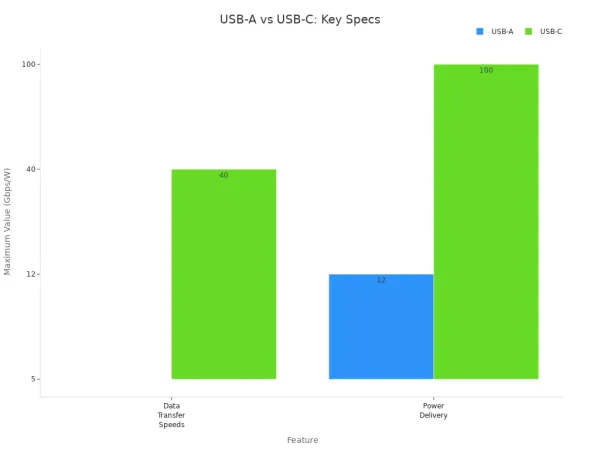
If you need fast charging or high-speed data for new integrated circuits, usb-c is the best choice. For older boards, usb-a remains useful. Always check your device’s ports and think about future needs. The shift to usb-c supports better performance and helps reduce electronic waste. You can feel confident choosing the right usb connector for your projects.
FAQ
Can you use USB-C cables with older electronic components?
You cannot use USB-C cables directly with older electronic components that have USB-A ports. You need an adapter or a special cable. Always check your device’s port before connecting.
Why do integrated circuits benefit from USB-C connectors?
Integrated circuits benefit from USB-C connectors because you get faster data transfer and higher power delivery. This helps you design advanced boards and connect modern devices more easily.
Is USB-A still useful for electronic projects?
You still find USB-A useful for electronic projects with legacy boards or older integrated circuits. Many microcontrollers and test equipment use USB-A ports for reliable connections.
How does USB-C improve power delivery in electronic components?
USB-C improves power delivery by supporting higher wattage. You can power larger electronic components, charge devices faster, and run advanced integrated circuits without extra adapters.
Do you need special cables for USB-C integrated circuits?
You need USB-C cables that match your integrated circuit’s specifications. Some USB-C cables support only charging, while others handle data and video. Always choose cables designed for your project.